
Free PDF Tools · 20 min read
Free PDF Tools: A Practical Guide to Managing Documents Online
Learn how to compress, merge, split, rotate, delete, reorder, and convert PDF files online while preserving document quality and choosing the right workflow.
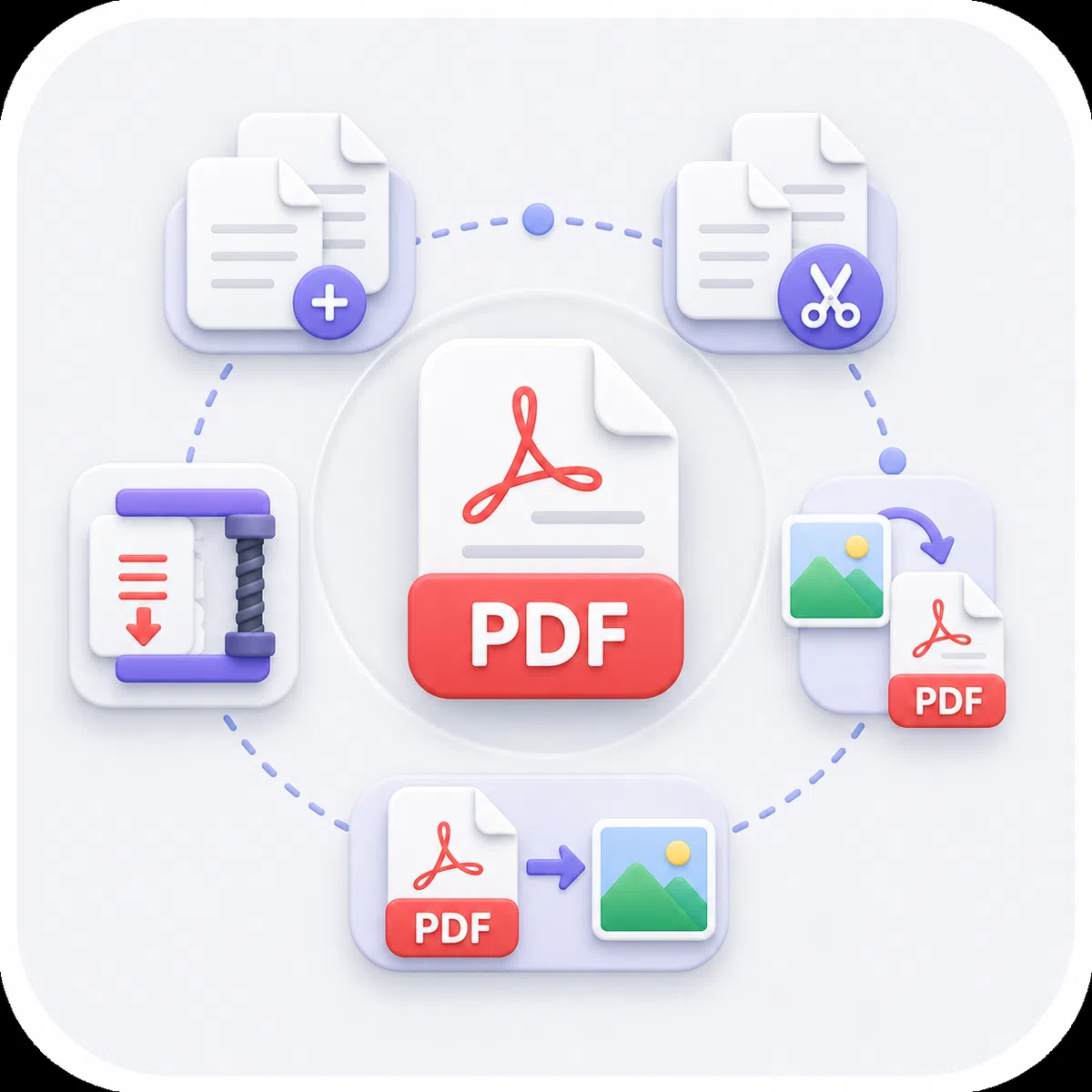
- What Are Online PDF Tools?
- Why Use Free PDF Tools Instead of Traditional Software?
- What Makes a PDF Tool Professional?
- PDF Tools Explained and When to Use Them
- Compress PDF to Reduce File Size
- Merge PDF Files into One Document
- Split a PDF into Separate Files or Pages
- Rotate PDF Pages and Correct Their Orientation
- Delete Unwanted PDF Pages
- Reorder PDF Pages by Dragging and Organizing
- Convert Office Files to PDF
- Convert Word to PDF
- Convert Excel to PDF
- Convert PowerPoint to PDF
- Convert Images and PDF Files
- Convert Images to PDF
- Convert PDF to Images
- How to Choose the Right PDF Tool
- A Professional Workflow for Processing PDF Files
- Prepare a Document Photographed on a Phone
- Prepare a Formal Submission
- Organize a Long Report
- Prepare Educational Material
- Preserving PDF Quality
- Handling Documents Safely Online
- Are Free PDF Tools Suitable for Business?
- The Difference Between Managing a PDF and Editing Its Content
- Best Practices Before Processing Any PDF
- Common Mistakes When Using PDF Tools
- Using PDF Tools for Students
- Using PDF Tools in Companies and Offices
- Using PDF Tools on a Phone
- Frequently Asked Questions About PDF Tools
- Conclusion
PDF has become one of the most widely used formats for sharing official documents, reports, contracts, forms, résumés, and study materials because it helps preserve page order, fonts, and images across different devices and operating systems. But working with PDF files often requires more than simply opening and reading them.
You may need to compress a large PDF before sending it by email, merge several documents into one file, split a long report, remove unnecessary pages, rearrange page order, or convert Word, Excel, PowerPoint, and image files to PDF. In other cases, you may need to extract PDF pages as separate images for use in a presentation, design, or digital post.
Free online PDF tools let you perform these tasks directly in your browser without installing a large application or learning complex settings. Choose the right tool, upload your file, select the required action, and download the new version when it is ready.
Having a complete set of PDF tools in one place can save significant time, especially when the same document needs several steps. For example, you can convert a Word document to PDF, merge it with another file, rearrange its pages, and compress the final version before sending it.
What Are Online PDF Tools?
Online PDF tools are browser-based services that help you process, organize, and convert PDF files without requiring specialized desktop software.
Instead of installing a full application for one task, such as deleting a page or merging two files, you can open the appropriate tool and complete the job in a few focused steps.
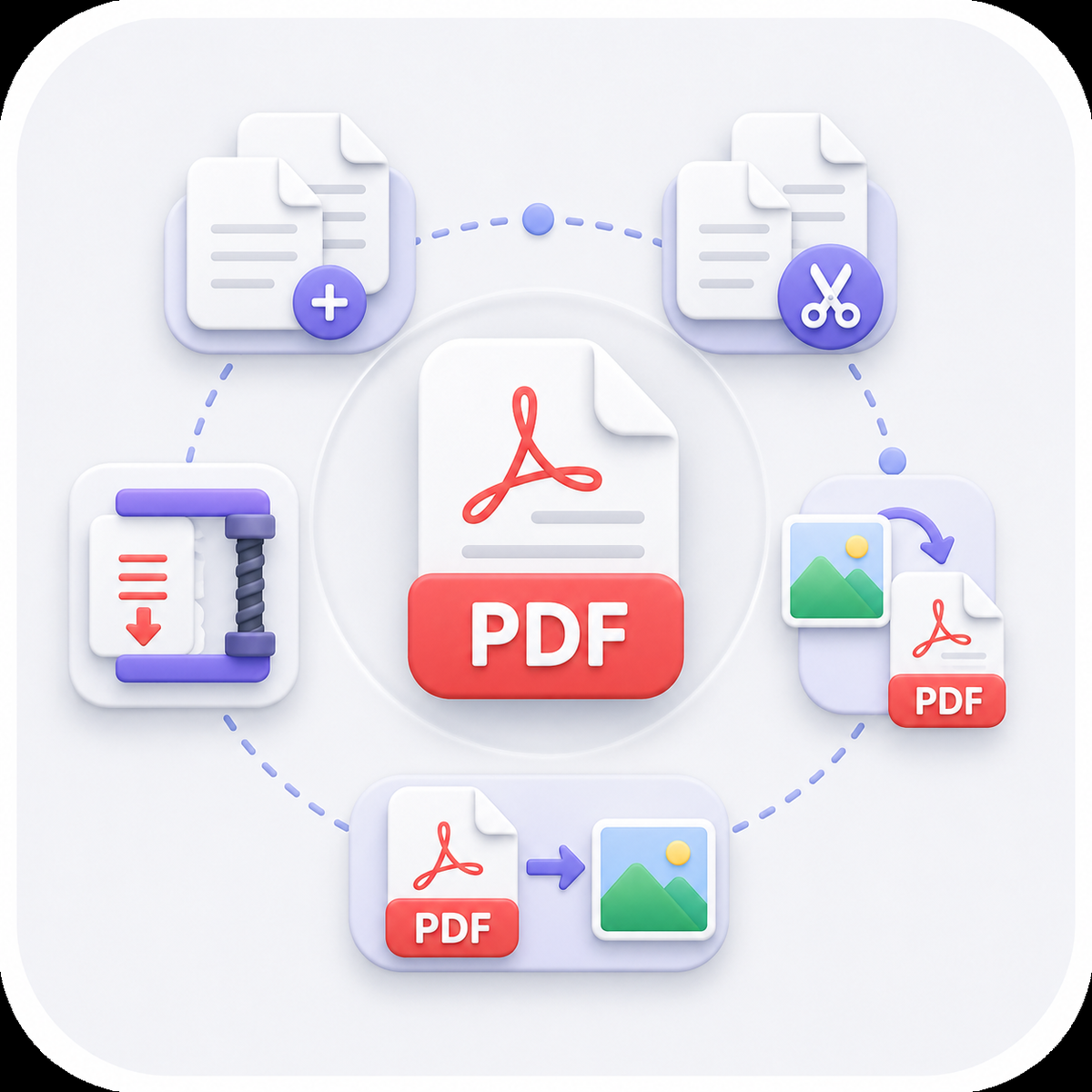
Common operations include:
- Reducing PDF file size.
- Combining multiple files into one document.
- Splitting a long file into smaller files.
- Extracting selected pages.
- Deleting unwanted pages.
- Rotating pages with the wrong orientation.
- Reordering pages.
- Converting Office files to PDF.
- Combining images into a PDF.
- Converting PDF pages to images.
These tools are useful for students, employees, business owners, teachers, accountants, designers, and anyone who works with digital documents regularly.
Why Use Free PDF Tools Instead of Traditional Software?
Not every simple task requires a paid professional application. In many cases, you only need one specific operation that can be completed quickly in the browser.
Complete Tasks Quickly
If your file is ready and you only need to compress, merge, or split it, a focused tool gets you to the result without forcing you through long menus and settings you do not need.
No Software Installation
Browser-based tools are useful when you are using a work computer that does not allow software installation, or when you are working from a phone, tablet, or a device that is not your own.
Easy to Use
Each tool focuses on a clear task. A compressor reduces file size, a merge tool combines files, and a page organizer lets you reorder pages. This separation keeps the workflow simple even for users without technical experience.
Access from Different Devices
Online PDF tools can be used from laptops and desktop computers and, in many cases, from phones and tablets as long as the browser supports file uploads and downloads.
Lower Cost
Free tools provide a practical option for everyday tasks that do not require advanced desktop software or a monthly subscription.
What Makes a PDF Tool Professional?
PDF tools differ in usability and output quality. A professional tool should make the operation clear and preserve the document structure and content quality as much as possible.
A Clear Interface
The user should immediately understand which files are supported and what to do next, without reading lengthy instructions or searching for the action button.
Organized Page Handling
For merge, split, and reorder tools, users should be able to see files or pages in the correct sequence before creating the final version.
Appropriate Output Quality
When converting images or Office files, the tool should preserve text clarity, image quality, and formatting as closely as possible.
Understandable Error Messages
If a file is damaged, protected, or unsupported, the tool should explain the problem rather than stopping without a useful message.
Support for Common Formats
Practical tools support widely used extensions such as PDF, DOCX, XLSX, PPTX, JPG, and PNG.
Simple File Download
When processing is complete, the output file should be clearly presented and ready to download without unnecessary steps.
PDF Tools Explained and When to Use Them
Compress PDF to Reduce File Size
A PDF compressor reduces document size while preserving as much text and image clarity as possible.
This is useful when:
- The file exceeds an email attachment limit.
- You need to upload a document to a form with a maximum file size.
- The document contains many high-resolution images.
- You need to share the file quickly from a phone.
- You want to reduce storage usage.
- You want a PDF on a website to download faster.
Compression results depend on what the PDF contains. Documents with scanned images can often be reduced more than files that are already mostly text and lightweight elements.
How Do You Get a Good Compression Result?
Start from the highest-quality original, then inspect the compressed version after downloading it. Pay particular attention to small text, images, tables, and detailed graphics. The goal is not simply the smallest possible file; it is a sensible balance between file size and readability.
Moderate compression may be enough for a document intended for on-screen reading. If the file will later be printed, preserve a higher level of detail.
Compressing a PDF to reduce file size while preserving readable content
Merge PDF Files into One Document
A PDF merge tool combines two or more files into one ordered document. It is one of the most useful PDF operations for work and study because it turns scattered documents into a single file before sharing or archiving.
You can use it to:
- Combine a résumé and certificates into one file.
- Merge monthly invoices.
- Combine separate report chapters.
- Group related contracts or attachments.
- Organize project files.
- Create one complete study file.
- Combine documents downloaded from different sources.
Before merging, confirm the file order because upload order may determine the sequence in the final PDF. Clear filenames or numbered filenames are especially helpful when you are combining many documents.
After the file is created, open it and check the beginning and end of each section to make sure pages are not duplicated and no document appears in the wrong place.
Merging multiple PDF files into one organized document
Split a PDF into Separate Files or Pages
Use a PDF splitter when you have a long document and need to separate part of it from the remaining pages.
Typical uses include:
- Separating one chapter from a book.
- Extracting pages from a report.
- Splitting a contract into separate attachments.
- Creating a file for each section.
- Separating certificates stored in one document.
- Extracting one invoice from a multi-invoice file.
- Dividing a large file into smaller files for easier sending.
Splitting is usually performed with page ranges. For example, pages 1–5 can become one file and pages 6–10 another.
Before choosing a range, check the page numbering shown by the PDF viewer. The printed page number inside the document may differ from the actual PDF page index, especially when the file includes a cover or introductory pages.
Splitting a PDF and extracting selected pages or page ranges
Rotate PDF Pages and Correct Their Orientation
Some PDF pages appear sideways or upside down, particularly after scanning documents or photographing them with a phone. A PDF rotation tool corrects those pages without requiring you to recreate the entire file.
You may rotate:
- All pages.
- A single page.
- A selected group of pages.
- Only landscape pages.
- Pages scanned in the wrong orientation.
This is different from temporarily rotating the view in a PDF reader. The tool creates a new version that saves the corrected page orientation, so the document remains properly aligned when opened on another device or printed.
After rotating, check that text, tables, stamps, and signatures are upright and that pages that did not need correction remain unchanged.
Delete Unwanted PDF Pages
A PDF may contain blank pages, duplicates, outdated covers, internal information, or attachments that should not appear in the version you plan to share. A page-deletion tool creates a new PDF without the selected pages while keeping the rest of the file.
The tool is useful for:
- Removing blank pages created during scanning.
- Removing a duplicated page.
- Deleting an outdated cover.
- Removing pages that contain internal information.
- Preparing a shorter version for sharing.
- Removing an unnecessary attachment.
- Creating a public version of an internal document.
Review the selected pages carefully before deleting them, especially with contracts or official documents. Keep the original file until you are certain the new version contains everything required.
If a page contains confidential data, removing the page takes it out of the visible document sequence, but in sensitive cases you should also check whether the same information exists in comments, attachments, or file properties.
Reorder PDF Pages by Dragging and Organizing
A PDF page organizer changes page positions without altering their content.
Use it when:
- Pages were scanned in the wrong order.
- An appendix appears before the report.
- The cover needs to move to the beginning.
- You want the executive summary to appear earlier.
- A page is located in the wrong section.
- You need to organize study papers or administrative documents.
Before saving, review the sequence from the first page to the last. Check headings, numbering, and tables because moving one page can affect how the entire document is understood.
This tool is especially helpful when pages were photographed separately and then combined. Instead of scanning again, you can reorganize them inside one PDF.
Convert Office Files to PDF
Convert Word to PDF
Word-to-PDF conversion is useful when you need to share a document while preserving its layout as closely as possible.
Word files remain editable and their layout may change on devices that do not have the same fonts or use a different software version. PDF provides a more stable format for viewing and printing.
You can convert Word files to PDF for:
- Résumés.
- Official letters.
- Reports.
- Research papers.
- Contracts.
- Forms.
- E-books.
- Course assignments.
Before converting, check margins, headings, images, tables, and page numbers. After conversion, open the PDF and make sure a line has not moved unexpectedly to another page and no table or image has shifted.
If the Word document uses uncommon fonts, the result may vary depending on the conversion system. Prefer standard fonts or embed fonts when that option is available.
Convert Excel to PDF
Converting Excel to PDF makes it easier to share tables and reports without exposing cells and formulas to casual editing.
Common uses include:
- Financial reports.
- Expense statements.
- Invoices.
- Price lists.
- Sales reports.
- Attendance sheets.
- Project plans.
- Product lists.
The most important step before conversion is setting the print area. If a table is wider than the page, it may split into difficult-to-read sections or place some columns on a separate page.
Review:
- Portrait or landscape orientation.
- Paper size.
- Margins.
- Repeating header rows.
- Hidden or unnecessary columns.
- Number readability.
- The resulting page count.
Landscape orientation may work better for wide tables, while portrait orientation is often better for simpler tables with fewer columns.
Convert PowerPoint to PDF
PowerPoint-to-PDF conversion makes presentations easy to open and print even when presentation software is not available on the recipient’s device.
You can use it to:
- Send a presentation to clients.
- Share training-course materials.
- Save a final version of a presentation.
- Print slides.
- Upload a presentation as a readable document.
- Create study notes.
- Archive older presentations.
After conversion, each slide normally becomes a separate PDF page. Make sure text is large enough to read, images are clear, and no element extends beyond the slide boundaries.
Animations, transitions, and video do not behave in a PDF the way they do in the original presentation. Each slide should therefore make sense as a static page.
Convert Images and PDF Files
Convert Images to PDF
An images-to-PDF tool combines JPG or PNG images into one ordered document.
It is useful when you need to:
- Photograph paperwork with a phone.
- Combine receipts and invoices.
- Create a file from photos of certificates.
- Combine photographed book pages.
- Send scanned or photographed documents.
- Create a PDF album.
- Combine screenshots.
- Archive paper documents.
Before conversion, arrange the images in the correct order. The first image will normally become the first page, followed by the remaining images in the sequence you set.
Also check:
- Image clarity.
- That document edges are not cropped.
- The orientation of each image.
- That duplicate images are removed.
- Balanced lighting.
- The absence of heavy shadows.
- Appropriate image sizing on the page.
After creating the PDF, review every page and make sure images are not stretched and margins do not look awkward.
Combining images into one organized PDF document
Convert PDF to Images
A PDF-to-images tool works in the opposite direction: it extracts each PDF page as a separate image.
You can use it to:
- Insert one page into a presentation.
- Share a specific page on a phone.
- Use a chart or diagram in a design.
- Save pages as preview images.
- Extract pages from an image-based document.
- Create thumbnails.
- Publish a page on a platform that does not support PDF.
Choose an output resolution that matches the intended use. Lower resolution creates smaller files but can make fine text unclear. Higher resolution is better for design and printing but produces larger files.
Remember that converting a page to an image turns text into part of the image, so it may no longer be selectable or copyable as it was in the original PDF.
Extracting PDF pages and converting them to separate images
How to Choose the Right PDF Tool
Some tools may look similar, but each one solves a different problem.
Use PDF compression when:
You want to keep all pages and content while reducing the file size.
Use PDF merge when:
You have several files and want to create one document from them.
Use PDF split when:
You want to separate a page range or create multiple files from one document.
Use page deletion when:
You want to remove specific pages while keeping the rest of the document.
Use page reordering when:
All pages are needed, but their sequence is wrong.
Use PDF rotation when:
Some pages appear in the wrong orientation.
Use Word, Excel, or PowerPoint to PDF when:
You want to share an Office file in a more stable format for viewing and printing.
Use images to PDF when:
You have several images and want to combine them into one document.
Use PDF to images when:
You want to extract document pages and use them as separate image files.
A Professional Workflow for Processing PDF Files
Some documents require more than one tool. Performing the steps in the right order reduces repeated work.
Prepare a Document Photographed on a Phone
- Review the photos and remove blurry shots.
- Correct image orientation.
- Arrange them in page order.
- Convert the images to PDF.
- Review the resulting file.
- Remove any duplicate page.
- Compress the PDF if it is too large.
Prepare a Formal Submission
- Convert the Word or Excel document to PDF.
- Merge it with certificates or attachments.
- Reorder the pages.
- Delete unnecessary pages.
- Review the complete file.
- Compress the final copy before uploading it.
Organize a Long Report
- Keep an original copy.
- Remove blank pages.
- Correct pages with the wrong orientation.
- Reorder sections.
- Extract a shorter version when needed.
- Compress the file for electronic sharing.
Prepare Educational Material
- Combine chapters or handouts into one file.
- Place the cover at the beginning.
- Add appendices at the end.
- Check page numbering.
- Create a lightweight copy for students.
- Keep a higher-quality version for printing.
Preserving PDF Quality
Do Not Compress Repeatedly Without a Reason
Compressing the same file several times can gradually reduce image quality. Always keep the original and create the compressed copy as the final step.
Use Original Files
Taking a screenshot of a PDF page and then converting that screenshot back to PDF reduces quality. Use the original document whenever possible.
Check Fonts
After converting Office files, verify that all fonts, characters, and numbers appear correctly.
Inspect Tables
Wide tables may be affected during conversion, especially in Excel and Word files. Check their borders, headings, and page breaks before approving the result.
Check Images
Inspect logos, charts, diagrams, and small images. Do not rely only on a preview of the first page.
Choose the Tool According to the Required Result
Do not convert pages to images if you need to keep text searchable and selectable.
Handling Documents Safely Online
PDF files may contain personal, financial, or administrative information, so they should be handled carefully when using any online service.
Before uploading a sensitive document, review the service’s privacy policy and how files are processed. Look for clear information about file-retention periods, deletion, and encrypted connections.
Avoid uploading:
- Passwords.
- Access keys.
- Complete bank-card details.
- Unnecessary identity-document copies.
- Sensitive medical records.
- Highly confidential contracts.
- Files containing internal login information.
It is also good practice to:
- Use a trusted device.
- Avoid public Wi-Fi for sensitive files.
- Delete unnecessary copies from the Downloads folder.
- Keep the original in a safe location.
- Review the final file before sharing it.
- Make sure you send the document to the correct recipient.
Are Free PDF Tools Suitable for Business?
Yes. Free tools can be appropriate for simple and moderate day-to-day tasks such as compressing a file, combining documents, deleting pages, or converting an Office file.
Organizations may have more complex requirements, especially when processing many files, handling confidential documents, or needing user permissions, electronic signatures, and approval workflows.
A free tool may be suitable when you need to:
- Process one file or a limited number of files.
- Perform a clearly defined operation.
- Get a quick result.
- Avoid editing text inside the PDF.
- Avoid the need for an enterprise archiving system.
Enterprise processing may instead require internal software or a service that offers advanced management, activity logs, and stronger data controls.
The Difference Between Managing a PDF and Editing Its Content
It is important to distinguish tools that manage PDF files from tools that edit the content inside them.
The tools in this collection help you:
- Organize pages.
- Delete or rotate pages.
- Merge and split files.
- Compress files.
- Convert formats.
- Extract pages as images.
Changing a word inside a paragraph, editing an existing table, or replacing an image within a page normally requires a PDF editor that can modify internal document elements.
Understanding this difference helps you choose the correct tool instead of trying to perform an operation the tool was not designed to handle.
Best Practices Before Processing Any PDF
Keep an Original Copy
Never work on the only copy of an important document, particularly before deleting pages or splitting the file.
Use a Clear Name for the New Version
Instead of names such as final-final-new.pdf, use a filename that identifies the content and, when useful, its date or status.
Example:
sales-report-june-compressed.pdf
Close the File Before Uploading It
On some devices, keeping a file open in another application can interfere with browser access to it.
Make Sure the Download Finishes
Do not close the page before the output file has finished downloading. Open the result afterward to make sure it is not corrupted.
Review Every Page
Do not stop after confirming that the file opens. Check page order, quality, content, and total page count.
Compress at the End
If you plan to merge files and reorder pages, complete those operations first and compress the final version afterward.
Common Mistakes When Using PDF Tools
Deleting the Original Too Early
You may later discover that an important page was removed or quality dropped. Keep the original until the new file has been reviewed and approved.
Merging Files in the Wrong Order
Check the sequence before processing and do not rely only on filenames when they are similar.
Selecting the Wrong Pages
Pay attention to the difference between the page number printed inside the document and the page number shown by the PDF viewer.
Converting Before Reviewing the Source Layout
Any formatting problem in Word, Excel, or PowerPoint may carry over into the PDF.
Heavily Compressing a File Intended for Print
Images may become visibly soft when printed. Create a lightweight copy for sharing and a high-quality copy for printing.
Sharing a File Without Opening It
Always open and inspect the final version before sending it to a client or official organization.
Using Unclear Filenames
Random filenames make version management difficult, especially when several versions of the same document exist.
Using PDF Tools for Students
Students often need PDF files for assignments, research papers, reports, university applications, and training-program submissions.
A student can:
- Convert a research paper from Word to PDF.
- Combine the cover, paper, and appendices.
- Turn assignment photos into one file.
- Compress the document before uploading it to a learning platform.
- Extract selected pages for revision.
- Reorder photographed pages that were captured in the wrong sequence.
- Remove blank pages.
Before submitting an assignment, confirm that the student’s name and ID are clear, pages are in order, and the file opens correctly on another device.
Using PDF Tools in Companies and Offices
Professional PDF tools simplify common office tasks without unnecessary complexity.
They can be used for:
- Preparing quotations.
- Combining client documents.
- Archiving invoices.
- Sending reports.
- Converting Excel sheets.
- Preparing HR files.
- Organizing contracts.
- Sharing presentations.
- Reducing attachment sizes.
When working with company documents, use a clear naming and storage policy and make sure the file being shared is the version that has been approved internally.
Using PDF Tools on a Phone
Many PDF operations can be completed from a phone, especially when documents are photographed or received through messaging apps.
For better results:
- Use a stable internet connection.
- Close unnecessary apps when processing a large file.
- Make sure enough storage is available.
- Save the file to a folder you can easily find.
- Open the result after downloading it.
- Avoid taking screenshots when the original file can be downloaded.
- Keep the phone straight when photographing pages for conversion.
A computer may be more comfortable when arranging many pages, while a phone is convenient for quick tasks and smaller files.
Frequently Asked Questions About PDF Tools
Can I use PDF tools for free?
Many services offer basic operations such as compression, merging, splitting, and conversion for free. Some may impose limits on file size or the number of operations.
Do I need to install software?
Online tools run in the browser, so they usually do not require software installation.
Can I merge more than one PDF?
Yes. A PDF merger can combine several files into one document; arrange them in the correct order before processing.
Does PDF compression reduce quality?
Image quality may decrease depending on the compression level, while digital text usually remains clear. Always inspect the result after compression.
Can I delete only one page?
Yes. You can select one or more pages and create a new version without those pages.
Can I change page order without deleting pages?
Yes. Use a PDF organizer to move pages to new positions while keeping them in the document.
How do I fix upside-down or sideways pages?
Use a PDF rotation tool, select the pages that need correction, and save the new version.
Can I convert phone photos to PDF?
Yes. Upload JPG or PNG images, arrange them, and combine them into one PDF.
Can I convert PDF pages to JPG or PNG?
Yes. You can extract PDF pages as separate images and use them in designs or digital sharing.
Can Word be converted to PDF while preserving formatting?
Conversion normally preserves most formatting, but fonts, tables, and images should be checked afterward.
What is the difference between merging and reordering a PDF?
Merging combines multiple files, while reordering changes the sequence of pages within a file or after files have been combined.
What is the difference between splitting a PDF and deleting pages?
Splitting creates one or more files from selected pages. Deleting pages creates a version of the original document with specific pages removed.
What is the best format for official documents?
PDF is well suited to final documents that need consistent viewing or printing, while the original Word or Excel file should be kept for future editing.
Why did my PDF become large after converting images?
High image resolution or a large number of images is usually the cause. You can compress the images before combining them or compress the PDF afterward.
Can protected PDF files be processed?
Some password-protected files or files with editing restrictions cannot be deleted, merged, or converted until protection is removed lawfully and with the file owner’s authorization.
Conclusion
Free online PDF tools provide a practical and fast way to manage documents without complicated software. You can compress large files, merge multiple documents, split long reports, rotate pages, delete unwanted pages, reorder content, convert Word, Excel, PowerPoint, and image files to PDF, and turn PDF pages into images.
The right tool depends on the result you need. Compress a file when it is too large, merge when documents are scattered, split when you only need a specific part, and use reorder, rotate, or delete tools when pages need organization.
For a professional result, always keep the original file, review documents before and after processing, confirm page order, inspect text and image quality, and compress only at the final stage. This workflow helps you create a clear, organized PDF that is ready to send, print, or archive.
