
How to Create a QR Code · 25 min read
How to Create a QR Code: A Practical Step-by-Step Guide
Learn how to create, customize, size, test, print, and track a QR code, with practical guidance on static versus dynamic codes and common mistakes to avoid.
- What Is a QR Code?
- How Does a QR Code Work?
- Why Have QR Codes Become So Important?
- Easy Access to Information
- Fewer Manual-Entry Errors
- Connecting Print to Digital Content
- Faster Interaction
- Supporting Marketing Campaigns
- Measuring Results
- Static vs. Dynamic QR Codes
- Static QR Codes
- When Is a Static QR Code Appropriate?
- Advantages of Static QR Codes
- Disadvantages of Static QR Codes
- Dynamic QR Codes
- When Is a Dynamic QR Code Appropriate?
- Advantages of Dynamic QR Codes
- Disadvantages of Dynamic QR Codes
- Which Type of QR Code Should You Choose?
- How to Create a QR Code That Is Ready to Use
- Step 1: Define the Goal
- Step 2: Choose the Content Type
- Step 3: Enter the Data Carefully
- Step 4: Choose the Basic Design
- Step 5: Choose High-Contrast Colors
- Step 6: Add a Logo When Appropriate
- Step 7: Add a Clear Call to Action
- Step 8: Review the Preview
- Step 9: Test the Code Before Downloading
- Step 10: Choose the Right Download Format
- Step 11: Keep an Original Master Copy
- Step 12: Print a Test Copy
- How Do You Choose the Right QR Code Size?
- QR Code on a Business Card
- QR Code on a Flyer or Brochure
- QR Code on a Wall Poster
- QR Code on a Billboard
- QR Code on a Screen
- Why the Quiet Zone Around a QR Code Matters
- QR Code Design Best Practices
- Maintain Strong Contrast
- Do Not Over-Customize
- Use a Small Logo
- Do Not Crop the Code
- Use a High-Quality File
- Add Instructions Beside the Code
- Link to a Mobile-Friendly Page
- What Should Users See After Scanning?
- Business Uses for QR Codes
- Restaurants and Cafés
- Retail Stores
- Companies and Service Providers
- Events and Conferences
- Real Estate
- Education and Training
- Clinics and Healthcare Centers
- Tourism and Hotels
- Personal Uses for QR Codes
- Using a QR Code on a Business Card
- Using QR Codes in Marketing
- Printed Advertising
- Product Packaging
- In-Store Displays
- Exhibitions and Trade Shows
- Outdoor Advertising
- Direct Mail
- How Do You Increase QR Code Scans?
- Offer a Clear Benefit
- Use Specific Wording
- Place the Code Prominently
- Make It Easy to Reach
- Make Sure the Destination Is Fast
- Minimize Extra Steps
- How to Track QR Code Performance
- Add UTM Parameters to a QR Code URL
- Common QR Code Creation Mistakes
- Using the Wrong URL
- Not Testing the Code
- Making the Code Too Small
- Weak Contrast
- Using an Oversized Logo
- Removing the Quiet Zone
- Using a Low-Quality Image
- Linking to a Page That Is Poor on Mobile
- Using a Static Code for a Changing Campaign
- Not Explaining the Benefit
- Putting the Code on a Highly Reflective Surface
- Printing on a Highly Curved Surface
- Stretching or Distorting the Code
- How to Test a QR Code Professionally
- Functional Test
- Device Test
- Size Test
- Distance Test
- Lighting Test
- Material Test
- Destination Test
- Ongoing Test
- QR Code Printing Tips
- Use High Resolution
- Keep the Code Square
- Avoid Highly Glossy Paper
- Consider Printer Quality
- Leave Enough Margin
- Check Printed Colors
- Do Not Print a Large Batch Before Testing
- Can You Create a QR Code for Free?
- Do QR Codes Expire?
- QR Code Security
- Tips for Users
- Tips for Businesses
- Can You Put Personal Information Inside a QR Code?
- How Do You Organize Multiple QR Codes?
- Practical QR Code Examples
- Example: Restaurant Menu QR Code
- Example: Appointment Booking QR Code
- Example: Event QR Code
- Example: Wi-Fi QR Code
- How to Create a Professional QR Code, Not Just a Functional One
- QR Code Pre-Publish Checklist
- Frequently Asked Questions About QR Codes
- Do I need an app to scan a QR code?
- Can I change a QR code URL after printing?
- What is the best color for a QR code?
- Can I put a logo inside the QR code?
- What is the best download format?
- Why does a QR code fail after printing?
- Can I create a QR code for a PDF?
- Can I create a QR code for WhatsApp?
- Is a QR code suitable for large-format printing?
- Can I identify exactly who scanned the code?
- Can one QR code point to multiple links?
- Are QR codes always free?
- Can a QR code work without internet?
- How many times can a QR code be scanned?
- Can I print a QR code in black and white?
- Conclusion
Quick Response codes, commonly known as QR codes, have become one of the most widely used ways to connect physical materials with digital content. Instead of asking a customer to type a long URL or search for a specific account online, they can point a phone camera at the code and reach the intended destination within seconds.
A QR code can open a website, display a digital menu, share a phone number, show a map location, provide a file download, register someone for an event, connect to Wi-Fi, or open social media profiles. That makes QR codes useful not only for large companies, but also for stores, restaurants, marketers, event organizers, trainers, students, institutions, and personal projects.
Creating a useful QR code involves more than pasting a link and clicking Download. A good code should be clear, easy to scan, suitable for print, consistent with the visual identity, and connected to a destination that works properly on mobile devices.
This guide explains how to create a QR code that is ready for real-world use, the difference between static and dynamic codes, how to customize the design, choose the right download format, test the code before publishing, and avoid common mistakes.
What Is a QR Code?
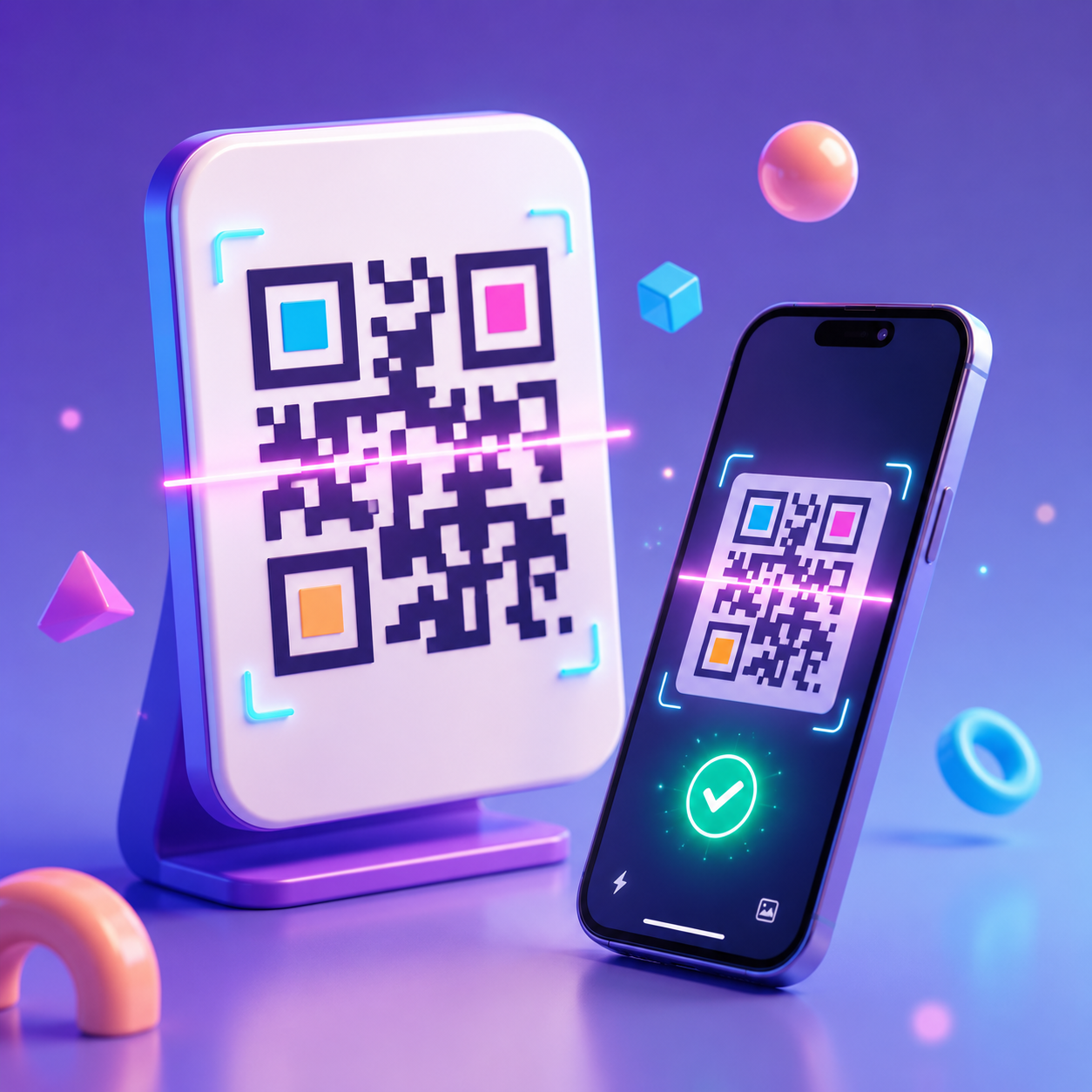
Illustration explaining what a QR code is and how it can be used
A QR code is a two-dimensional code that can store different types of data in a pattern made from small squares, usually black and white but sometimes customized with other colors.
QR stands for Quick Response because the format was designed to be recognized and read quickly.
Most modern phones can scan QR codes directly through the camera app without requiring a separate application. When the camera detects the code, a notification appears and can be tapped to open the linked destination or perform the associated action.
A QR code can contain:
- A website URL.
- A product or service page.
- A phone number.
- An email address.
- A prepared text message.
- Contact details.
- A map location.
- Wi-Fi credentials.
- A PDF link.
- A registration form.
- A digital menu.
- A payment link.
- Social media profiles.
- Short text or instructions.
- An app-store link.
The main advantage is that a QR code can move someone from a printed item or physical location to digital content with one simple action.
How Does a QR Code Work?
When you create a QR code, the data you enter is converted into a visual pattern of squares and spaces arranged according to a defined structure. A phone camera reads that pattern and converts it back into the original URL, text, or other data.
QR codes contain visual markers that help the device identify orientation and read the code from different angles. Many also include error correction, which can allow the code to remain readable even if a small area is scratched or obscured.
Error correction does not mean the design can be altered without limits. Heavy decoration, weak contrast, or a code that is too small can still make scanning unreliable.
Why Have QR Codes Become So Important?
QR codes reduce the number of steps users need to take. Instead of typing a website address, saving a phone number, or searching for a business name, they can scan once and go directly to the intended action.
Easy Access to Information
A QR code can be placed on a flyer, invoice, business card, advertisement, or product so users can reach the exact content they need.
Fewer Manual-Entry Errors
Typing URLs or phone numbers manually can lead to mistakes. A QR code transfers the data as it was entered when the code was created.
Connecting Print to Digital Content
A QR code turns printed material into a digital access point. A poster can lead directly to a booking page, while product packaging can open instructions or additional product information.
Faster Interaction
Reducing friction can increase engagement. Scanning a code is often easier than typing a long address or searching for a particular page.
Supporting Marketing Campaigns
QR codes can support clear calls to action such as:
- Book now.
- View details.
- Download the guide.
- Order the product.
- Register for the event.
- Leave a review.
- Contact us.
- Follow our accounts.
Measuring Results
With a dynamic code or a trackable destination URL, you can measure scans and gain a clearer view of campaign performance.
Static vs. Dynamic QR Codes
Before creating a code, it is important to understand the two main types: static and dynamic.
Static QR Codes
A static QR code stores the destination data directly. If you create a code for a particular URL, that URL remains permanently encoded in the QR pattern.
You generally cannot change the destination after the code has been created and printed. If the destination needs to change, you normally need a new code and new printed material.
When Is a Static QR Code Appropriate?
Static codes work well when the information is permanent or unlikely to change, for example:
- Your main website URL.
- A phone number.
- Contact details.
- A stable Wi-Fi password.
- A permanent map location.
- A short fixed text message.
Advantages of Static QR Codes
- Simple to create.
- Usually do not require an account.
- Often available for free.
- Do not depend on an external dashboard after creation.
- Well suited to simple, permanent uses.
Disadvantages of Static QR Codes
- The destination cannot normally be changed after printing.
- Tracking options are limited.
- The code can become unhelpful if the destination URL changes or disappears.
Dynamic QR Codes
A dynamic QR code normally stores an intermediate redirect URL rather than the final destination itself.
The final destination can be changed from a dashboard without changing the printed QR image. For example, the same printed code can point to a promotion this month and later be redirected to a new product page.
When Is a Dynamic QR Code Appropriate?
Dynamic codes are useful when you need flexibility or measurement, such as:
- Marketing campaigns.
- Printed advertising.
- Events.
- Seasonal offers.
- Long-lived brochures.
- Frequently changing menus.
- Product pages.
- Customer competitions.
- Review collection.
- Campaigns where scan counts matter.
Advantages of Dynamic QR Codes
- Change the destination after printing.
- Track scans with services that support analytics.
- Manage multiple codes from one dashboard.
- Pause or redirect a code.
- Useful for long-running commercial campaigns.
Disadvantages of Dynamic QR Codes
- An account may be required.
- Some features require a paid subscription.
- Some providers may stop redirection when a subscription expires.
- The code depends on the redirect service remaining available.
Which Type of QR Code Should You Choose?
Choose a static code when the destination is permanent and you do not need analytics or future edits.
If you will print the code on thousands of items, expect to change the destination later, or want to measure how many people scan it, a dynamic code is usually the more flexible choice.
Ask yourself:
- Could the destination change in the future?
- Will the code be printed on materials that are difficult or expensive to replace?
- Do I need scan statistics?
- Do I want to manage multiple codes from one place?
- Is the code part of a time-limited campaign?
The answers will help you choose the appropriate type.
How to Create a QR Code That Is Ready to Use
QR-code generators differ in design, but the essential workflow is similar across most websites and applications.
Step 1: Define the Goal
Do not start with visual customization before you know what you want the user to do.
Should they visit a page, call a number, download a file, open a map location, or join a Wi-Fi network?
A clear goal helps you select the right data type and write a useful call to action beside the code.
Examples of clear goals include:
- Open an appointment-booking page.
- Download a product catalog.
- View a menu.
- Open a registration form.
- Send a WhatsApp message.
- View the store location on a map.
- Save contact details to a phone.
- Open social media profiles.
Avoid creating a code with no obvious purpose. Users may hesitate to scan it if they do not know what will happen next.
Step 2: Choose the Content Type
Once the goal is clear, select the most suitable QR content type in the generator.
Options may include:
- URL.
- Text.
- Email.
- A phone number.
- SMS.
- WhatsApp.
- Wi-Fi.
- Contact card.
- Map location.
- PDF file.
- Social profiles.
- App store.
- Event or appointment.
- Link collection.
Choose the option that best matches the intended action rather than putting everything behind a generic URL.
For example, if the goal is to share a person’s contact details, a contact-card QR code may be more useful than sending the user to a plain-text page.
Step 3: Enter the Data Carefully
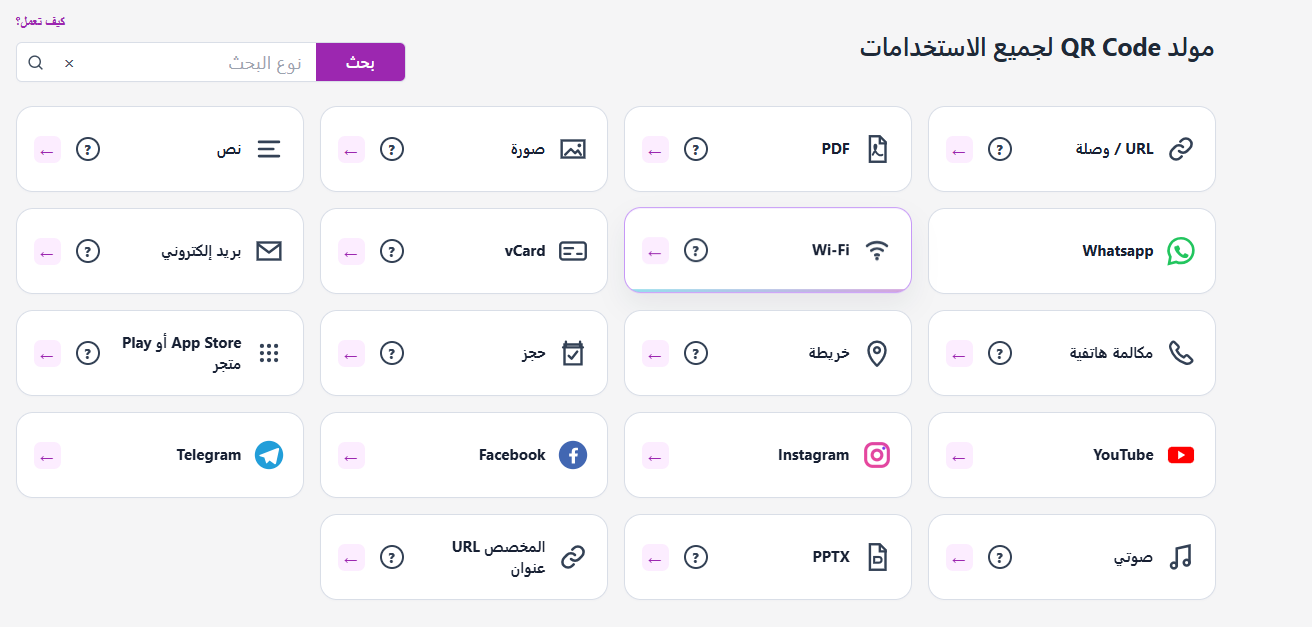
Selecting a QR code type and entering the required information
Enter the URL or other data, then review it before continuing.
For website URLs, confirm that:
- The address begins with
https://. - The page opens without errors.
- The URL contains no accidental spaces.
- The destination is not deleted or private.
- The page works well on mobile devices.
- The link goes directly to the intended page.
- You are not using an unnecessarily long or complicated URL.
For phone numbers or email addresses, check the details carefully. A small error can make a printed code useless.
Step 4: Choose the Basic Design
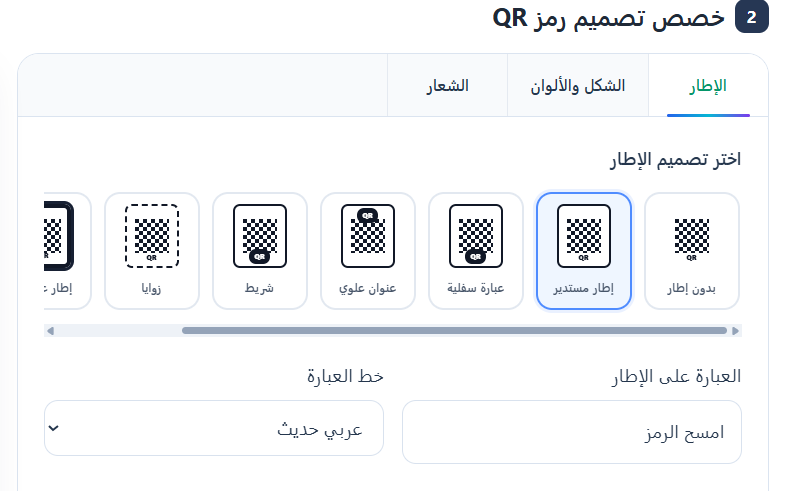
Choosing a suitable QR code design
The traditional black-on-white design is the safest starting point for reliable scanning.
If you want the code to match your brand, you may be able to customize:
- Module color.
- Background color.
- Dot shape.
- Corner shape.
- Outer frame.
- Center logo.
- Text around the code.
- Call-to-action wording.
- Error-correction level.
Do not let customization become decoration that reduces scan reliability.
Step 5: Choose High-Contrast Colors
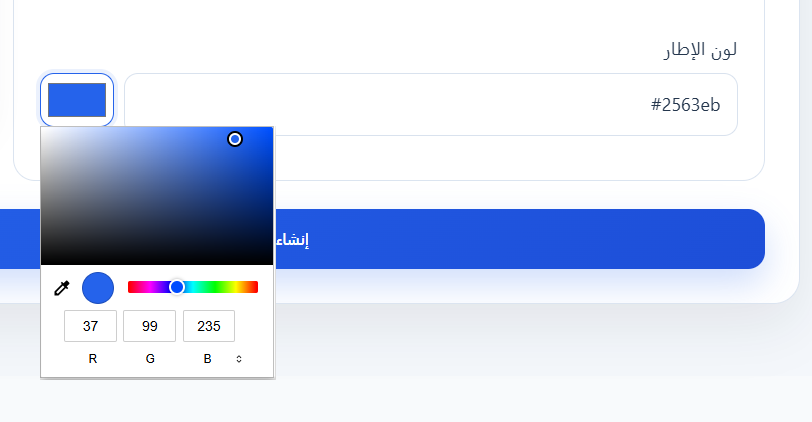
Choosing clear, high-contrast colors for a QR code
A QR scanner needs a clear visual difference between the dark modules and the background.
In general, use a dark color for the QR elements and a light color for the background. A dark brand color can replace black if the contrast remains strong enough.
Suitable combinations can include:
- Navy on white.
- Dark green on white.
- Black on very light gray.
- Dark blue on light beige.
- Dark purple on white.
Avoid:
- Light colors on light backgrounds.
- Yellow on white.
- Light gray on white.
- Very complex gradients.
- Busy backgrounds.
- Images behind the code.
- Reversed light-on-dark designs unless they have been thoroughly tested.
Do not judge by appearance alone. Test scanning on more than one phone.
Step 6: Add a Logo When Appropriate
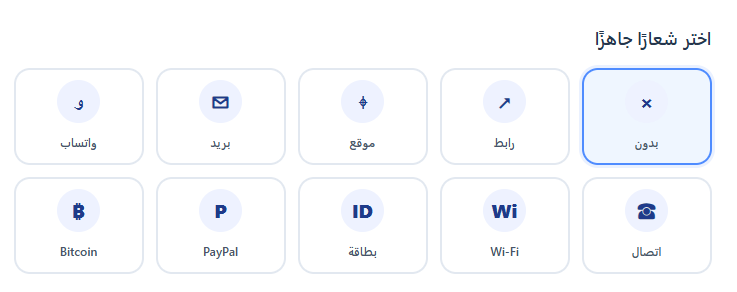
Adding a logo inside a QR code while preserving scan reliability
A company logo or small icon in the center of a QR code can reinforce visual identity and increase user confidence.
Keep these points in mind:
- Use a simple, clear logo.
- Keep the logo relatively small.
- Leave breathing space around it.
- Increase error correction when the option is available.
- Do not cover the key corner markers.
- Test the code after adding the logo.
- Use a high-quality logo file.
A logo is not necessary in every case. If the QR code itself must be very small, omitting the logo may improve reliability.
Step 7: Add a Clear Call to Action
Some people will not know why they should scan a code simply by seeing it. Add a short phrase nearby that explains the benefit or expected action.
Useful examples include:
- Scan to view the menu.
- Scan to register.
- View product details.
- Open the location on the map.
- Download the file.
- Book your appointment.
- Contact us.
- Save our contact details.
- View the offer.
- Rate your experience.
- Join the Wi-Fi network.
Avoid wording such as “Click here” on printed material because there is nothing to click.
Step 8: Review the Preview
Before downloading, inspect the code in the preview.
Confirm that:
- Every part of the code is visible.
- No edges are cropped.
- There is clear empty space around the code.
- The logo is readable.
- The colors are correct.
- Text does not crowd the QR pattern.
- The overall design suits the intended placement.
The empty margin around a QR code, often called the quiet zone, is important. Do not place text, borders, or images directly against the code modules.
Step 9: Test the Code Before Downloading
Do not rely only on how the QR code looks. Scan it directly from the screen with a phone.
Ideally, test it using:
- An iPhone camera.
- An Android camera.
- A different QR-reading app.
- Several scanning distances.
- Normal room lighting.
- A smaller screen.
- A printed test copy.
Make sure the phone recognizes it quickly and opens the correct destination.
Step 10: Choose the Right Download Format
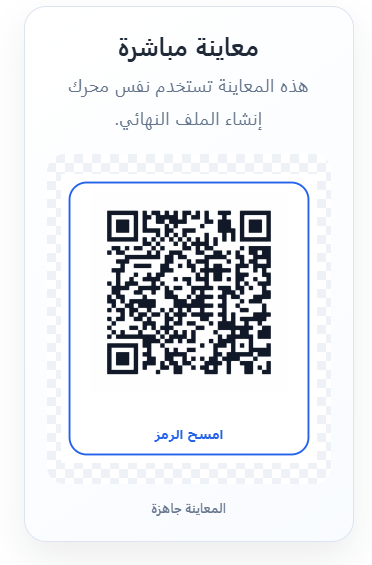
Reviewing a QR code and downloading it in the appropriate format
QR generators commonly offer formats such as PNG, SVG, or PDF.
PNG
PNG works well for straightforward digital use, including:
- Websites.
- Social media posts.
- Presentations.
- Messages.
- Digital promotional images.
If the code will be displayed at a large size, download a sufficiently high-resolution PNG.
SVG
SVG is a vector format that can be enlarged without losing sharpness. It is a strong option for:
- Professional printing.
- Signs.
- Banners.
- Business cards.
- Packaging.
- Large-format designs.
- Editing in design software.
SVG is one of the best choices when a QR code is intended for print.
PDF can be useful when sending a design to a printer or placing the code inside a print-ready document.
Some PDFs contain only the QR code, while other tools may export a complete design with a frame and supporting text.
Step 11: Keep an Original Master Copy
Keep the highest-quality original even if you currently need only a small version.
It is useful to save:
- An SVG version for print.
- A high-resolution PNG.
- The original destination URL or data.
- The campaign name.
- The creation date.
- Where the code is being used.
- A copy of the final design.
This is especially important for businesses that use many QR codes across different campaigns.
Step 12: Print a Test Copy
Before printing hundreds or thousands of copies, print one sample at the actual intended size.
Test it from:
- A short distance.
- A medium distance.
- A slight side angle.
- Bright lighting.
- Relatively low lighting.
- More than one device.
A code can look excellent on screen but become too small or unclear after printing. A physical test should be a standard part of the preparation process.
How Do You Choose the Right QR Code Size?
There is no single size that works for every situation. The correct size depends on how far away users will be when scanning and on the amount of data encoded.
More encoded data creates a denser pattern, which may require a larger physical size.
QR Code on a Business Card
Do not make it excessively small. A user should be able to point a phone at it comfortably.
QR Code on a Flyer or Brochure
A medium size can work well when paired with a clear call to action.
QR Code on a Wall Poster
Increase the size according to the expected scanning distance.
QR Code on a Billboard
The code needs to be very large and visually simple because people may scan it from much farther away.
QR Code on a Screen
Do not display it too small or at low resolution. Screen brightness and reflections should not make it difficult to scan.
As a practical rule, the greater the scanning distance, the larger the QR code should be. Do not design around the smallest size that works under ideal conditions; use a comfortable safety margin.
Why the Quiet Zone Around a QR Code Matters
A QR code needs a clear margin on all sides. This empty area helps the camera distinguish the code boundaries from surrounding visual elements.
Avoid placing:
- Text directly against the code.
- Lines that pass through the margin.
- Busy background images.
- A border too close to the QR pattern.
- Decorative elements that overlap the edges.
- Nearby colors that resemble the QR modules.
When placing the code in a designed card or poster, leave a white or light area around it instead of extending a busy background all the way to the edges.
QR Code Design Best Practices
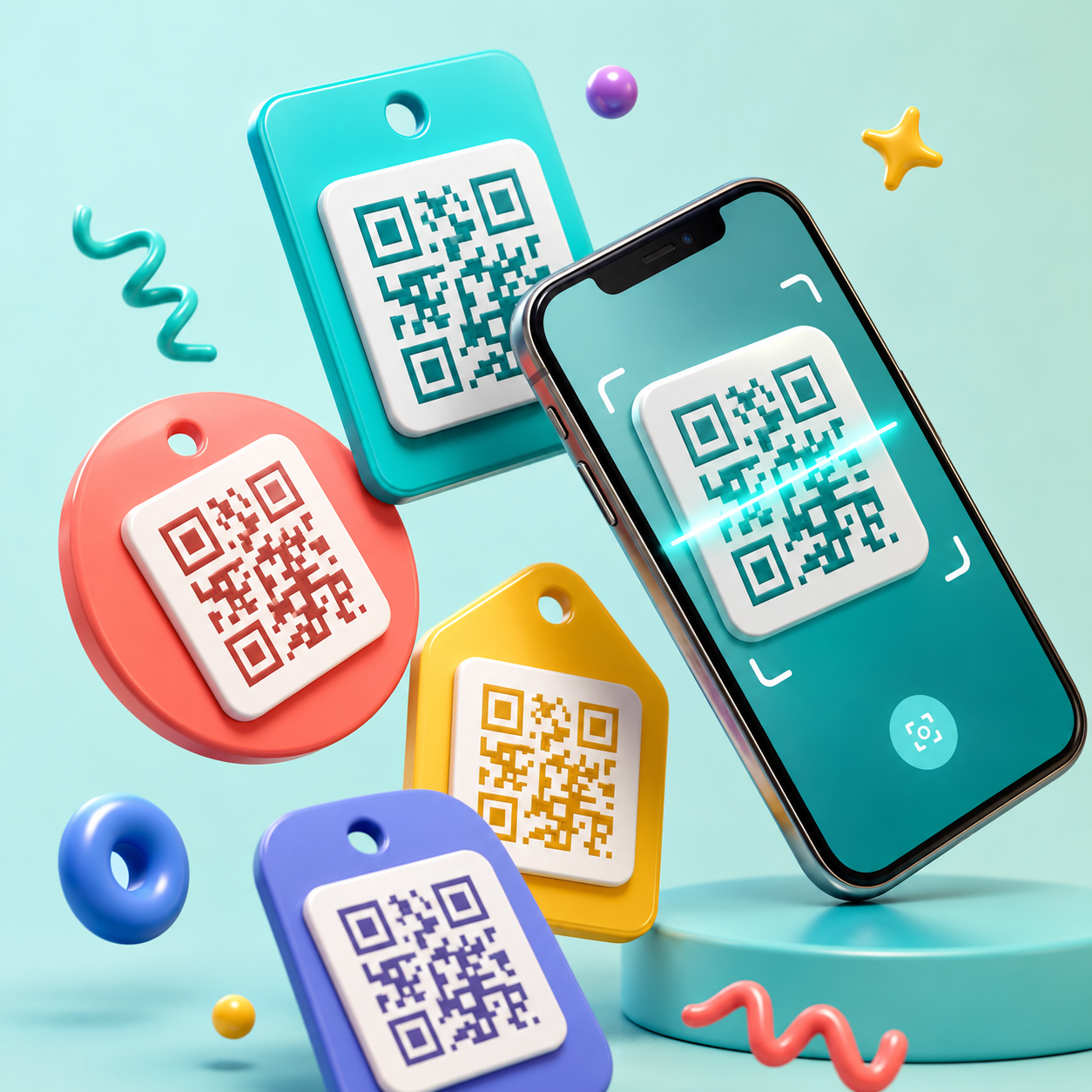
Professional examples of QR code customization and design
Maintain Strong Contrast
Contrast is one of the most important factors. The main QR modules should be clearly darker than the background.
Do Not Over-Customize
You can change corners, colors, and shapes, but excessive changes may create a code that looks distinctive while becoming less reliable to scan.
Use a Small Logo
A large logo can cover important encoded information. Use it as a supporting brand element, not the dominant visual feature.
Do Not Crop the Code
Make sure no part of the code edges disappears when exporting the design or placing it into another application.
Use a High-Quality File
Avoid taking a screenshot of the QR code for print. Download the original output in a suitable format.
Add Instructions Beside the Code
A short explanation of the benefit of scanning can increase user engagement.
Link to a Mobile-Friendly Page
Most scans happen on phones, so the destination should be fast, responsive, and easy to use.
What Should Users See After Scanning?
A successful QR experience depends on more than the code design. A code can scan perfectly while users leave immediately because the destination experience is poor.
The destination should be:
- Fast to load.
- Optimized for phone screens.
- Clear in purpose.
- Free from intrusive pop-ups.
- Consistent with the promise written beside the code.
- Secure and served over HTTPS.
- Easy to navigate.
- Focused on a clear next action.
- Current and available.
- Free from unnecessary clutter.
If the printed message says “Scan for 15% off,” send the user directly to the offer instead of making them land on the website homepage and search for it.
Business Uses for QR Codes
Restaurants and Cafés
QR codes can open a digital menu, table-booking page, map location, or review form.
A digital menu can be updated without reprinting every physical menu, especially when the QR code points to a destination that can be changed.
Retail Stores
A QR code on a product can provide:
- Specifications.
- A usage video.
- A sizing guide.
- Warranty information.
- Customer reviews.
- Related products.
- Care instructions.
- A purchase page.
Companies and Service Providers
Codes can be used for appointment booking, quotation requests, WhatsApp contact, or downloading a company profile.
Events and Conferences
QR codes can support:
- Registration.
- Ticket verification.
- Event schedules.
- Venue directions.
- Program downloads.
- Seating maps.
- Post-event feedback.
Real Estate
A QR code on a property sign can open photos, pricing, location, floor plans, and agent contact information.
Education and Training
Codes can provide access to:
- Study materials.
- Online tests.
- Additional files.
- Instructional videos.
- Attendance forms.
- Evaluation forms.
- Virtual-class links.
Clinics and Healthcare Centers
A code may be used for appointment booking, directions, pre-visit instructions, or access to an electronic information form. Avoid exposing unprotected personal health data.
Tourism and Hotels
QR codes in rooms or facilities can provide:
- Hotel services.
- Menus.
- Wi-Fi information.
- Facility instructions.
- Maps.
- Room-service requests.
- Check-in and check-out times.
- Tourist activities.
Personal Uses for QR Codes
QR codes are not limited to commercial use. Personal uses include:
- Sharing Wi-Fi access with guests.
- Sharing an event location.
- Sharing a contact card.
- Adding a link to a résumé.
- Sharing a portfolio.
- Adding a code to a wedding or event invitation.
- Linking to a photo album.
- Sharing social accounts.
- Creating a digital card.
- Linking to an RSVP form.
- Sharing a gift list.
- Providing access to a file or document.
Using a QR Code on a Business Card
A traditional business card has limited space, while a QR code can add a digital extension without overcrowding the card.
The code may lead to:
- A personal profile.
- A page containing several contact links.
- A portfolio.
- A LinkedIn profile.
- A booking form.
- A contact card that can be saved to the phone.
- The company website.
Do not let the QR code take over the entire card. The name, job title, and essential contact information should still be readable without scanning.
Using QR Codes in Marketing
A QR code can be a strong campaign element when it is tied to a clear objective.
Printed Advertising
Send users directly to a special offer or product page.
Product Packaging
Provide details that do not fit comfortably on the package itself.
In-Store Displays
Connect the code to promotions, service reviews, or a loyalty program.
Exhibitions and Trade Shows
Visitors can scan a code to download a catalog instead of carrying printed copies.
Outdoor Advertising
Use a code for booking or additional information, but make it large enough for the expected scanning distance.
Direct Mail
Add a QR code to letters and coupons to measure engagement with a campaign.
How Do You Increase QR Code Scans?
Simply placing a QR code on a design does not guarantee that people will scan it.
Offer a Clear Benefit
Tell users what they will receive, such as a discount, extra information, or faster registration.
Use Specific Wording
“Scan the code” is less persuasive than “Scan for 15% off.”
Place the Code Prominently
Do not hide it at the bottom of a design or place it too close to the edge.
Make It Easy to Reach
Avoid placing the code too high, behind a reflective surface, or in an area people cannot approach easily.
Make Sure the Destination Is Fast
Users may scan successfully and still leave if the page takes too long to load.
Minimize Extra Steps
After the scan, keep the required action simple. Do not send users to a crowded page and make them search for the intended link.
How to Track QR Code Performance
If the QR code is part of a marketing campaign, measuring results can help you understand whether it is working.
Tracking can be implemented through:
- A dynamic QR code with analytics.
- A short URL with tracking.
- UTM parameters.
- Website analytics.
- A dedicated landing page.
- A registration form tied to the campaign.
Available data may include:
- Total scans.
- Unique users.
- Scan time.
- Approximate country or region.
- Device type.
- Operating system.
- Campaign source.
- Conversion rate after the page opens.
Scan count alone is not enough. The important question is whether users completed the intended action, such as a purchase, registration, or booking.
Add UTM Parameters to a QR Code URL
UTM parameters help identify visits that came from a specific QR code or campaign.
You can create one tagged URL for a printed flyer, another for a business card, and another for an in-store poster. Even if all three lead to the same destination page, analytics can distinguish the traffic source.
Typical tracking fields include:
- Traffic source.
- Medium.
- Campaign name.
- Advertisement name.
- Design version.
Use clear, consistent naming so reports remain understandable later.
Common QR Code Creation Mistakes
Using the Wrong URL
A typo can send users to the wrong page or a destination that does not exist.
Not Testing the Code
One of the biggest mistakes is printing the code without testing it on several devices first.
Making the Code Too Small
A code may scan on a computer screen but fail after being printed on a small card.
Weak Contrast
Colors that are too similar make the pattern difficult to recognize.
Using an Oversized Logo
A large logo can cover too much encoded information.
Removing the Quiet Zone
Text or graphics touching the code boundaries can interfere with recognition.
Using a Low-Quality Image
Edges may become blurry, especially when the file is enlarged or printed.
Linking to a Page That Is Poor on Mobile
People scan from phones, so the destination must work well on smaller screens.
Using a Static Code for a Changing Campaign
If the offer or URL changes after printing, a static code cannot be updated.
Not Explaining the Benefit
Users may see the QR code but have no reason to scan it.
Putting the Code on a Highly Reflective Surface
Strong reflections can prevent the camera from reading the pattern.
Printing on a Highly Curved Surface
The pattern can distort, especially on small cylindrical packaging.
Stretching or Distorting the Code
Keep the QR code square. Do not compress or stretch it horizontally or vertically.
How to Test a QR Code Professionally
One successful scan is not enough for an important campaign.
Functional Test
Make sure the URL or action works correctly.
Device Test
Test on more than one phone and operating system.
Size Test
Print the code at its final physical size.
Distance Test
Scan it from the distance the audience is likely to use.
Lighting Test
Try the code under different lighting conditions.
Material Test
If it will be printed on glass, metal, or packaging, test it on the actual material.
Destination Test
Check page speed and how easy it is to complete the intended action after opening the destination.
Ongoing Test
Recheck important codes periodically to make sure the destination still works.
QR Code Printing Tips
Use High Resolution
For professional print, prefer SVG or another vector format whenever possible.
Keep the Code Square
Do not stretch the image.
Avoid Highly Glossy Paper
Strong reflections can interfere with scanning.
Consider Printer Quality
Faded or inaccurate printing can damage the small modules that make up the pattern.
Leave Enough Margin
Do not trim the design too close to the code.
Check Printed Colors
Printed colors may differ from what you see on screen.
Do Not Print a Large Batch Before Testing
Start with one sample copy.
Can You Create a QR Code for Free?
Yes. Many tools let you create static QR codes for free by entering a URL, choosing basic colors, and downloading the result.
Some features may require payment, including:
- Dynamic QR codes.
- Advanced tracking.
- Destination editing.
- Removing the provider’s branding.
- Managing large numbers of codes.
- Using a custom domain.
- Detailed report exports.
- Ready-made landing pages.
- Team collaboration.
Before subscribing to a service, check whether your QR codes will continue to work if the subscription ends.
Do QR Codes Expire?
A static QR code itself normally does not expire as long as the data or destination it contains remains valid.
However, it may stop producing the intended result if:
- The linked page is deleted.
- The URL changes.
- The domain expires.
- The linked file is removed.
- The Wi-Fi password changes.
- A URL-shortening service stops working.
- A dynamic-code subscription expires.
- The account managing the dynamic code is disabled.
Use stable destinations and review important codes periodically.
QR Code Security
A QR code is a way to carry data; it does not guarantee that the destination is safe. A malicious code can redirect users to a fake page or harmful file.
Tips for Users
- Review the destination URL before opening it.
- Avoid entering sensitive data on untrusted pages.
- Be cautious if a sticker appears to have been placed over an original QR code.
- Check the domain name.
- Do not download unknown files.
- Do not grant unnecessary permissions.
Tips for Businesses
- Use a trusted domain.
- Enable HTTPS.
- Avoid obscure shortening links when possible.
- Place your brand name or logo near the code.
- Check destinations periodically.
- Protect management dashboards with a strong password.
- Enable two-factor authentication when available.
- Do not store confidential information directly inside the QR code.
Can You Put Personal Information Inside a QR Code?
You can, but privacy should be considered carefully. Anyone who can see the code may be able to read its contents.
Do not store:
- Passwords.
- Login credentials.
- Identity numbers.
- Sensitive banking information.
- Confidential files.
- Private medical information.
- Temporary verification codes.
- Anything you would not want shared publicly.
If private content needs to be shared, use a protected page or a system that requires authentication.
How Do You Organize Multiple QR Codes?
When many QR codes are in use, it can become difficult to remember what each one does.
Maintain a record containing:
- Code name.
- Purpose.
- Destination URL.
- Code type.
- The creation date.
- Print location.
- Campaign name.
- Design version.
- Destination status.
- Last test date.
- Person responsible for the campaign.
Use clear filenames such as:
qr-summer-campaign-poster.svg
instead of generic names such as:
qr-code-final2-new.png
Practical QR Code Examples
Example: Restaurant Menu QR Code
- Create a fast menu page.
- Make prices and sections easy to read.
- Copy the URL.
- Use a dynamic QR code if the menu changes frequently.
- Add the restaurant logo.
- Add the message “Scan to view the menu.”
- Print one test copy.
- Test it on the table under the restaurant’s actual lighting.
- Keep a backup menu option in case internet access is unavailable.
Example: Appointment Booking QR Code
- Prepare the booking page.
- Test the form on a phone.
- Create a QR code that opens the booking form directly.
- Use wording such as “Scan to book your appointment.”
- Add the code to business cards and advertisements.
- Use a trackable link if you want to measure bookings.
Example: Event QR Code
- Create a page with the date, location, and instructions.
- Add the registration form.
- Create a dynamic QR code.
- Place it on invitations and posters.
- Test it before printing.
- If information changes, update the destination page instead of reprinting the code.
Example: Wi-Fi QR Code
- Select the Wi-Fi QR type.
- Enter the network name.
- Select the encryption type.
- Enter the password.
- Create the code.
- Test it with a phone that is not already connected to the network.
- Print the code and place it where guests can access it easily.
How to Create a Professional QR Code, Not Just a Functional One
A professional QR code combines reliable function with thoughtful design.
A good result should include:
- A clear, scannable code.
- Consistent visual identity.
- Enough quiet space.
- Explanatory wording.
- A direct benefit for the user.
- A strong landing page.
- A high-quality source file.
- Real testing before publication.
Do not make visual novelty the primary goal. The real value of the code is how easily it helps the user reach the intended result.
QR Code Pre-Publish Checklist
Review these points before publishing or printing:
- Is the encoded data correct?
- Does the destination work?
- Does the page use HTTPS?
- Is the page mobile-friendly?
- Is the code easy to scan?
- Is the contrast strong enough?
- Is there a clear quiet zone?
- Is the logo small and clear?
- Is the message beside the code understandable?
- Has it been tested on more than one device?
- Has it been tested at the final printed size?
- Is the file format appropriate?
- Can the destination be changed later if necessary?
- Is there a way to measure results?
- Has the original source been saved?
- Is the destination secure and up to date?
Frequently Asked Questions About QR Codes
Do I need an app to scan a QR code?
Most modern phones do not require an extra app. Open the camera, point it at the code, and tap the notification that appears.
Can I change a QR code URL after printing?
You can change the destination if the QR code is dynamic and the service supports editing. A static QR code cannot have its encoded data changed after creation.
What is the best color for a QR code?
Black on white is the safest option, but a dark brand color on a light background can also work when contrast is strong.
Can I put a logo inside the QR code?
Yes, as long as the logo is not too large and does not cover critical markers. Always test again after adding it.
What is the best download format?
PNG is convenient for digital use, SVG is usually best for scalable print, and PDF can be useful when sending print-ready material to a printer.
Why does a QR code fail after printing?
Common causes include an undersized code, weak contrast, low image quality, cropped edges, reflections, or an incorrect destination URL.
Can I create a QR code for a PDF?
Yes. The QR code normally stores a link to the PDF rather than the PDF file itself. Upload the PDF to an accessible website or storage location and encode its URL.
Can I create a QR code for WhatsApp?
Yes. A code can open a WhatsApp conversation for a phone number, and some tools let you include a prepared message.
Is a QR code suitable for large-format printing?
Yes. SVG or another vector format is preferred so the code remains sharp when enlarged.
Can I identify exactly who scanned the code?
Dynamic QR services or analytics can provide general scan statistics, but individual identity is normally unavailable unless the person signs in or submits a form.
Can one QR code point to multiple links?
Yes. Point the code to a landing page that contains several links, such as a website, social profiles, contact options, and booking.
Are QR codes always free?
Static codes are often free, while dynamic redirection and advanced reporting may require a subscription.
Can a QR code work without internet?
Data stored directly in the code, such as plain text or Wi-Fi credentials, can be read without internet access. Opening an online website or file still requires a connection.
How many times can a QR code be scanned?
A standard QR code has no inherent scan limit. Some dynamic-code services may apply plan-specific limits.
Can I print a QR code in black and white?
Yes. Black on white remains one of the clearest and most reliable options.
Conclusion
Creating a QR code is easy, but creating one that works reliably in the real world requires more than generating a square image. Define the goal first, choose the right content and code type, enter accurate data, use strong contrast, select an appropriate size and format, and test the code on different devices before publishing or printing it.
If the information is permanent and does not need to change, a static QR code may be enough. If the campaign will change or needs tracking and analysis, a dynamic QR code offers more flexibility.
Remember that the user experience does not end when the code scans. The destination should be fast, secure, clear, mobile-friendly, and directly deliver what the message beside the QR code promised.
Used well, QR codes can shorten communication steps, simplify access to information, connect printed materials with digital content, and support marketing, bookings, sales, customer service, education, and personal projects.
