
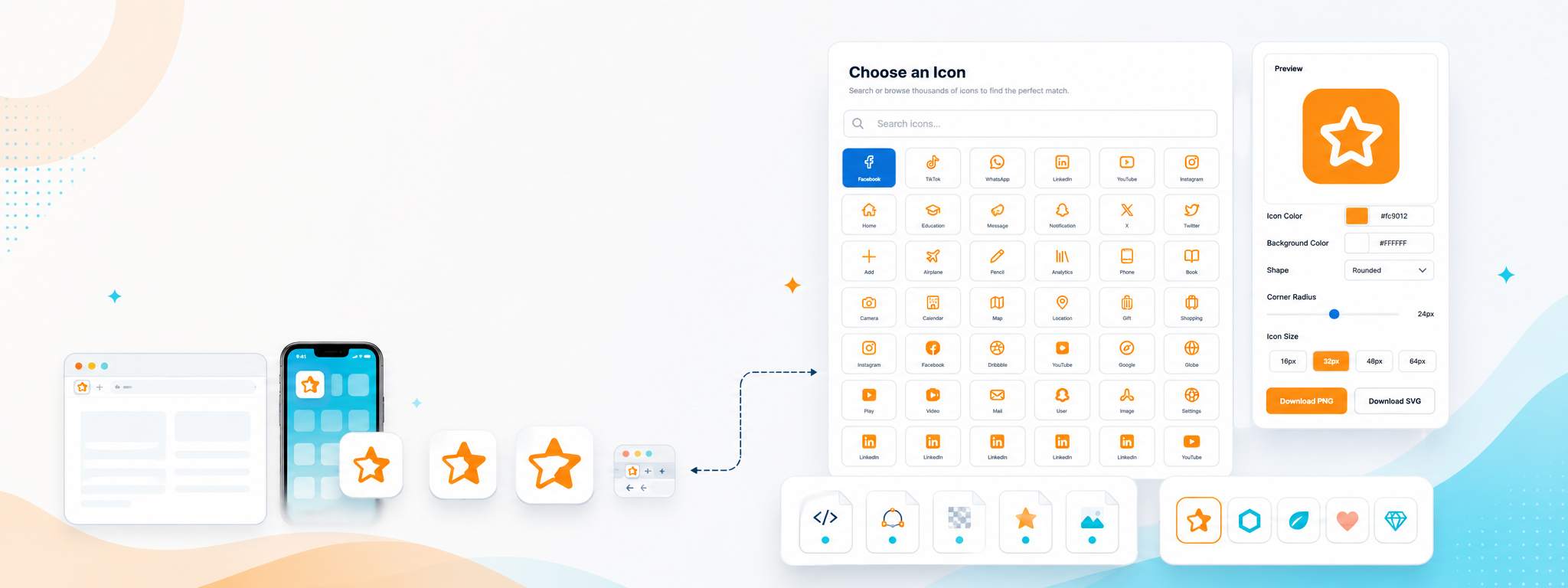
Why Do Icons Play an Essential Role in User Experience?
A clear interface does not rely on text alone. When an icon is used in the right place, it helps users recognize a function faster, reduces the need for lengthy explanations, and supports the visual hierarchy of a page. Its real value, however, appears when the icon is understandable and consistent with the rest of the interface rather than being used simply to fill space.
Faster Visual Guidance
Search, download, share and settings icons have become familiar to users, and using them correctly makes important functions easier to discover.
Less Interface Clutter
In limited spaces, a well-chosen icon can communicate a clear function without requiring long labels around every button or interface element.
Better Consistency Across Pages
When icons share the same weight, visual style and scale, the interface feels more connected and navigation between different parts of the website becomes more comfortable.
More Flexibility for Developers and Designers
Formats such as SVG provide flexibility for changing size and color inside a project, while PNG is useful when you need a ready-made raster file.
A Clearer Website Identity
A Favicon is not part of the interface controls, but it completes the visual identity of a website and helps users recognize it among browser tabs and shortcuts.
More Accurate Choices for Each Use Case
Not every icon works in every context. A symbol that works well in a navigation menu may not work inside a small button or application, so quality begins with choosing the right icon.
Start with the Icon Library or Create a Favicon for Your Website
This page brings together two different paths that are both connected to website visual identity: finding ready-made icons for interfaces and creating a custom website icon for browsers and devices.
General Icon Library
When you need a symbol for a button, menu, card or interface state, start with the Icon Library. The goal is to find a clear icon quickly and use it in the appropriate form inside your project instead of searching through different sources every time.
The library is useful for developers, UI/UX designers and website owners who regularly need visual elements for web pages, dashboards and digital projects. Web-friendly formats also make it easier to integrate icons into a design and control their size or color depending on the file type.

Favicon Generator
If your goal is to create the website icon itself, the process is different. Upload a logo or image, or start with text or an emoji, then prepare the icon sizes needed for browsers, Apple devices, Android devices and modern web experiences.
The generator helps you move from a single source image to an organized Favicon package instead of creating every file manually. It is also useful when updating an older website identity or checking whether an existing icon remains clear at very small sizes.

SVG, PNG or ICO? Choose the File Based on Where You Will Use It
There is no single format that is ideal for every icon. Using a symbol inside a modern web interface is different from using it as a browser icon, so it is better to choose the format according to the context rather than relying on the same file everywhere.
| Format | When Is It Suitable? | Main Advantage | What Should You Consider? |
|---|---|---|---|
| SVG | Icons for modern websites and user interfaces | Scales without losing sharpness and provides excellent styling flexibility | Review the file structure if you plan to embed it directly in HTML or control it through CSS. |
| PNG | Icons that require a ready-made raster file or transparent background | Easy to use and widely supported | Choose the appropriate dimensions so you do not load a file larger than necessary. |
| ICO | Favicon packages and traditional browser compatibility | A traditional format that works well as a fallback website icon | An ICO file can contain multiple sizes, but using it does not necessarily mean you will not need other icon files. |
How Do You Choose the Right Interface Icon Instead of Simply Choosing the Prettiest One?
A successful icon is not judged by how attractive it looks on its own, but by how clearly it communicates inside the interface. Before choosing a symbol, review its meaning, size, visual style and the context in which it will appear.
Start with the Function
Define what the user needs to understand: download, delete, edit, share, search or settings. Meaning should come before appearance.
Keep the Style Consistent
Avoid mixing extremely thin icons with heavy filled icons on the same screen unless there is a clear design reason for doing so.
Test the Actual Size
An icon that looks excellent in a large preview may become unclear when placed inside a small button or navigation bar.
Add a Label When Needed
If an icon is unfamiliar or could be interpreted in more than one way, use a text label or supporting description instead of forcing users to guess.
Good Icons Support an Interface, but They Should Never Replace Clarity
It is easy to overuse icons, especially because they can make an interface appear more modern. Too many unnecessary symbols, however, can make a page harder to read. The better approach is to use an icon when it adds meaning or helps users understand something faster.
How Can You Use Icons Without Adding Unnecessary Weight to a Page?
Icons are usually small files, but the way they are implemented still matters. Loading too many files, using images larger than necessary or repeatedly requesting the same resources can increase page requests and make interface management less efficient.
Use the Size You Actually Need
If you display a small PNG icon, avoid loading a very large version and relying only on CSS to reduce its displayed size.
Use SVG for Vector Icons
SVG works well when you need to change size or color while preserving sharp lines across different screen densities.
Do Not Load an Entire Library for One Icon
If you use an external icon library, consider whether its loading method makes sense for the number of icons your project actually uses.
Organize File Names
Clear file names reduce maintenance mistakes, especially as the interface grows and includes dozens of icons or several versions of the same symbol.
Test Dark Mode
An icon that looks excellent on a white background may disappear on a dark one. Review contrast if your interface supports multiple appearance modes.
Review Icons on Mobile
Small screens expose alignment and sizing problems quickly, so test buttons and icons inside the actual mobile interface.
When Do You Need a Custom Favicon Instead of Using Your Full Logo?
A full logo may include a long brand name or fine details, while a Favicon is displayed in a very small area. For that reason, a simplified compact version is often more effective.
A Long Horizontal Logo
Use the standalone symbol or first letter instead of squeezing the full brand name into a very small square.
A Detailed Visual Identity
Simplify fine lines and complex shapes so the icon remains recognizable at 16×16 and 32×32 pixels.
A New Website Without a Logo
You can begin with a clear letter or emoji and update the icon later when the project's visual identity becomes more established.
One Space for Developers, Designers and Website Owners
The way icons are used depends on your role, so the library is designed to remain useful whether you build interfaces directly, design them visually or simply manage a website and need to find the right symbol quickly.
For Developers
Access icons that can be used in interfaces, with formats suitable for HTML, CSS and modern web projects.
For UI/UX Designers
Compare different symbols and choose a visual style that remains consistent with the design system and the functions presented to users.
For Website Owners
Find icons for website content and create a clear Favicon without having to build every icon file manually from the beginning.
Frequently Asked Questions About the Icon Library and Favicons
What is the difference between interface icons and a Favicon?
When should I choose SVG instead of PNG?
Can I use an icon without any text?
Is a Favicon the same as a website logo?
Can I create a Favicon from an image or SVG file?
Should I use the same icon style throughout my website?
Does using more icons automatically make an interface better?
Can icons be used in dark mode?
Where should I start when building a new interface?
Follow Adawati Plus
Discover new tools, guides and platform updates.
You may also need
Continue with another useful tool related to what you are doing.
