
Extract PDF Pages · 9 min read
Extract Pages from a PDF: How to Save Only the Pages You Need
A practical guide to selecting and extracting specific PDF pages, checking page numbering, preserving the source, and creating a clean smaller document.
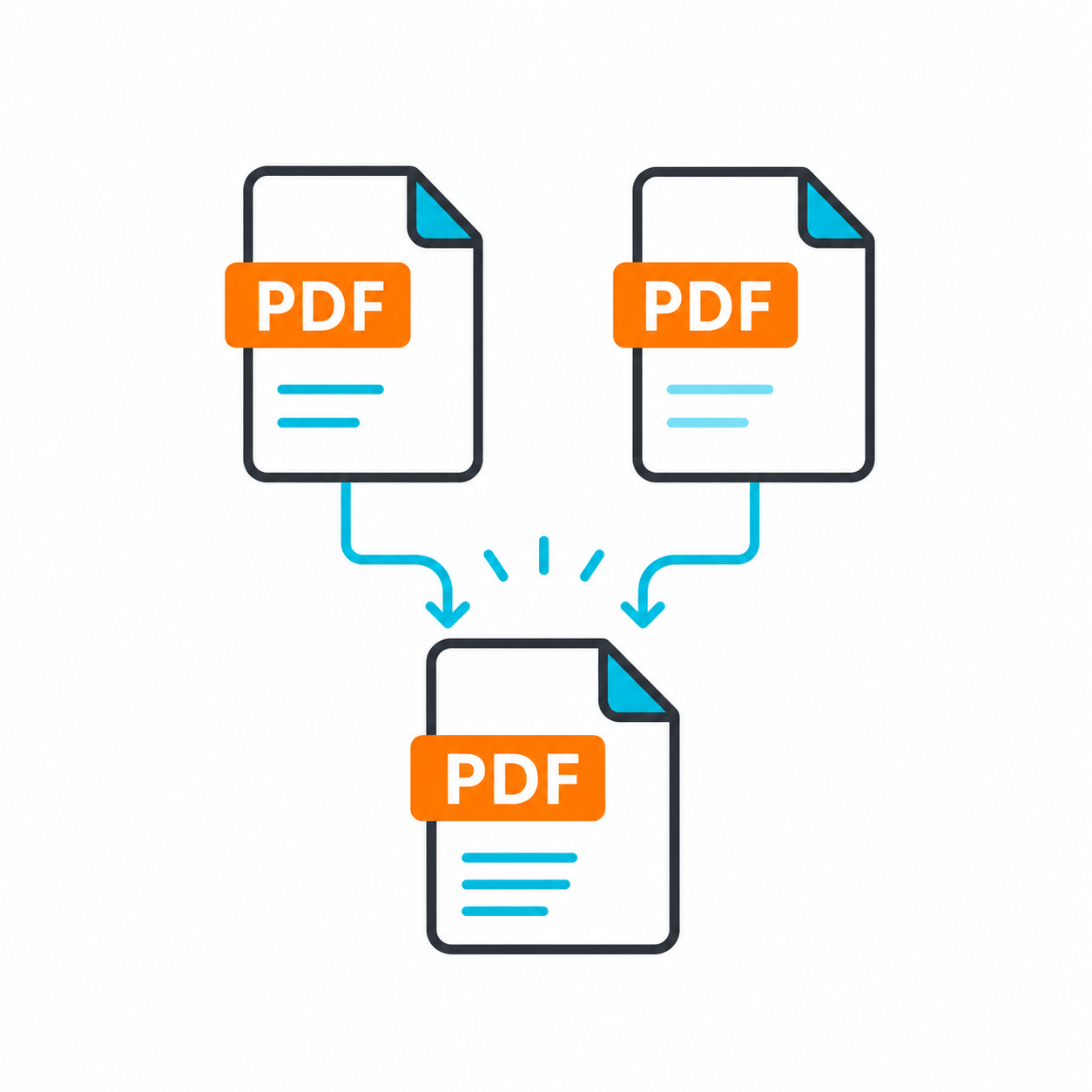
You may have a long PDF but need only one page: a certificate, receipt, table, signature page, or another specific document. Sending the entire file may be unnecessary.
Extracting a page from a PDF gives you a smaller, more focused file for the task at hand. It also reduces the chance of sharing pages that you did not intend to send.
In this article, we will explain how to approach page extraction, when to keep the result as a PDF, and when converting it to an image may be more useful.
When do you need to extract a single page?
Extract a page when only one specific part of the document is required, such as a results page, invoice, approval, or section of a contract.
Instead of making the recipient search through a long document, send the exact page they need.
Pay attention to page numbers
The page numbers printed inside a document may not match the PDF page order, especially when the file includes a cover or table of contents. Open the PDF and count pages from the beginning of the file itself.
Write down the required page number before starting, then review the output after extraction.
- Verify the page number before extracting it.
- Account for covers and tables of contents.
- Open the extracted file before sending it.
- Keep the original PDF.
Separate PDF or image?
If you want to send the page as a document, keep it as a PDF. If you want to place it inside a design or share it as an image, convert it to an image format.
The right choice depends on where and how the page will be used.
What if you need pages from different files?
Extract the required pages from each PDF, then merge them into one organized document. This is useful when you are preparing an application package or building one file from several sources.
Should you compress the page after extraction?
If the page contains a large image or a scan, the extracted file may still be heavy. Use PDF compression after extraction if you need to meet an upload limit.
When is extracting a page better than sending the whole PDF?
If you only need one certificate from a long file, or one receipt from a document containing several transactions, extracting that page is better than sending the full PDF. It makes the document clearer and helps avoid sharing unnecessary pages.
The same applies to contracts and reports. Sometimes the recipient only needs a signature page or one table. Sending the entire file can make the task slower and force them to search for the relevant section.
Page extraction creates a focused, standalone file. The more specific the document you send, the easier it is to handle and the lower the chance of confusion.
When should you convert the extracted page to an image?
If you need to submit the page as an official document or upload it to a form, PDF is often the better choice. If you want to place the page in a design, presentation, or quick message, an image may be more convenient.
For example, a page containing a barcode or compact table may be easy to share as an image. A page with a large amount of text or an official signature may be clearer when kept as a PDF.
Choose the format based on how the page will be used, not simply on what seems easiest. The goal is for the recipient to receive it clearly and in the required format.
Conclusion
Extracting a page from a PDF saves time and makes the file you send more precise. Identify the page carefully, review the extracted file, and then decide whether to keep it as PDF or convert it to an image based on your needs.