
Organize PDF Documents · 9 min read
Organize PDF Documents Before Sending: Merge, Split, or Compress?
Learn how to choose between merging, splitting, deleting, reordering, rotating, and compressing PDF files to prepare a clean document before sending it.
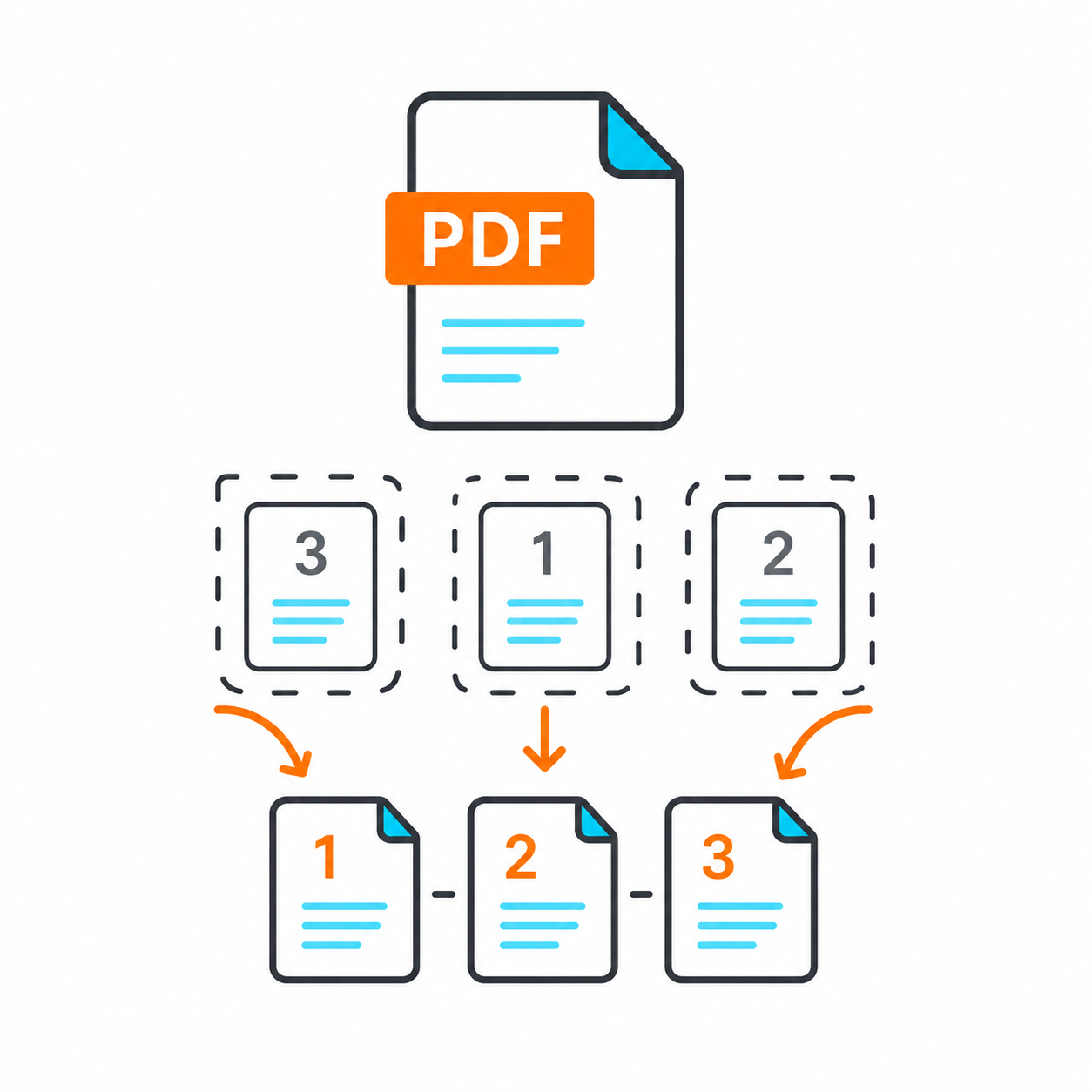
Before sending any PDF, do not start by thinking about the tool. Start with the result you need: one file, specific pages, a smaller file size, or images extracted from pages?
Many mistakes happen because someone compresses a file that should have been split, merges files that would be clearer separately, or sends many images when one PDF would be easier to handle.
This guide will help you choose the right step before you upload or send a PDF.
Start with the right question
Do you have several files that need to become one? Merge them. Do you have a long file but need only part of it? Split it. Is the content correct but the file too large? Compress it.
Defining the goal at the beginning saves you from trying several tools unnecessarily.
When should you merge files?
Merge files when they are all part of the same application, task, or subject. Examples include a form with attachments, a report with invoices, or images that have been converted to PDF.
After merging, review the order and compress the file if it becomes too large.
When should you split a PDF?
Split a PDF when you only need specific pages. Do not send a long document if the recipient only needs one or two pages.
Splitting makes the file lighter and more focused and reduces the chance of sharing information that is not required.
When should you compress a PDF?
Compress the file when the content and page selection are already correct but the file size is too large. Do not use compression as a substitute for organizing or splitting the document.
After compression, open the PDF and make sure the text and images are still clear.
What about images?
If your documents are currently image files, convert them to PDF first. If you need a PDF page as an image, use a PDF-to-images tool.
The correct choice depends on the direction of the workflow: images into a document, or a document into images.
A quick decision map before preparing a PDF
Before using any tool, ask one question: what is wrong with the current file? If several related files are scattered, you need to merge them. If the PDF is long and you only need part of it, you need to split it. If the file is ready but too large, you need to compress it.
This simple decision map helps you avoid using the wrong tool. Many people compress a long PDF when extracting only the required pages would be better, or merge unrelated documents and end up with a confusing final file.
Every step should serve the final goal: a clear, organized, lightweight file that contains only what the recipient needs.
- Several related files: merge them.
- Specific pages from a long document: split or extract them.
- A finished file that is too large: compress it.
- Photos of documents: convert the images to PDF.
Organize the PDF from the recipient's point of view
Do not arrange the document only according to how it makes sense to you. Think about the person who will open it. Put the main document first, then supporting attachments, followed by receipts or images when they are less important.
If the PDF is for an official application, make the first page clear and direct. If it is a report, begin with the introduction or summary before the details. Good ordering saves the recipient time and reduces misunderstandings.
After preparing the document, read through it from start to finish. If it makes sense without relying on the original file names, the order is probably good.
Checklist before sending
Before sending a PDF, make sure it opens normally, includes every required page, and has the correct page order. Also check the file size if you will upload it to a form with a size limit.
Pay attention to privacy. Do not send an entire document if only one page is needed. Extracting the required page can be both clearer and safer.
- Open the final file before sending it.
- Check the clarity of text and images.
- Review the page order.
- Remove unnecessary pages.
Conclusion
Organizing PDF documents starts with identifying the goal: merge, split, compress, or convert. Once you choose the right operation, you can produce a file that is clearer and easier to send or upload.