
Convert Images to WebP · 7 min read
How to Convert Images to WebP for Faster Websites and Better SEO
Learn how to convert images to WebP, choose suitable source files, balance quality and file size, and use optimized images to improve website performance.
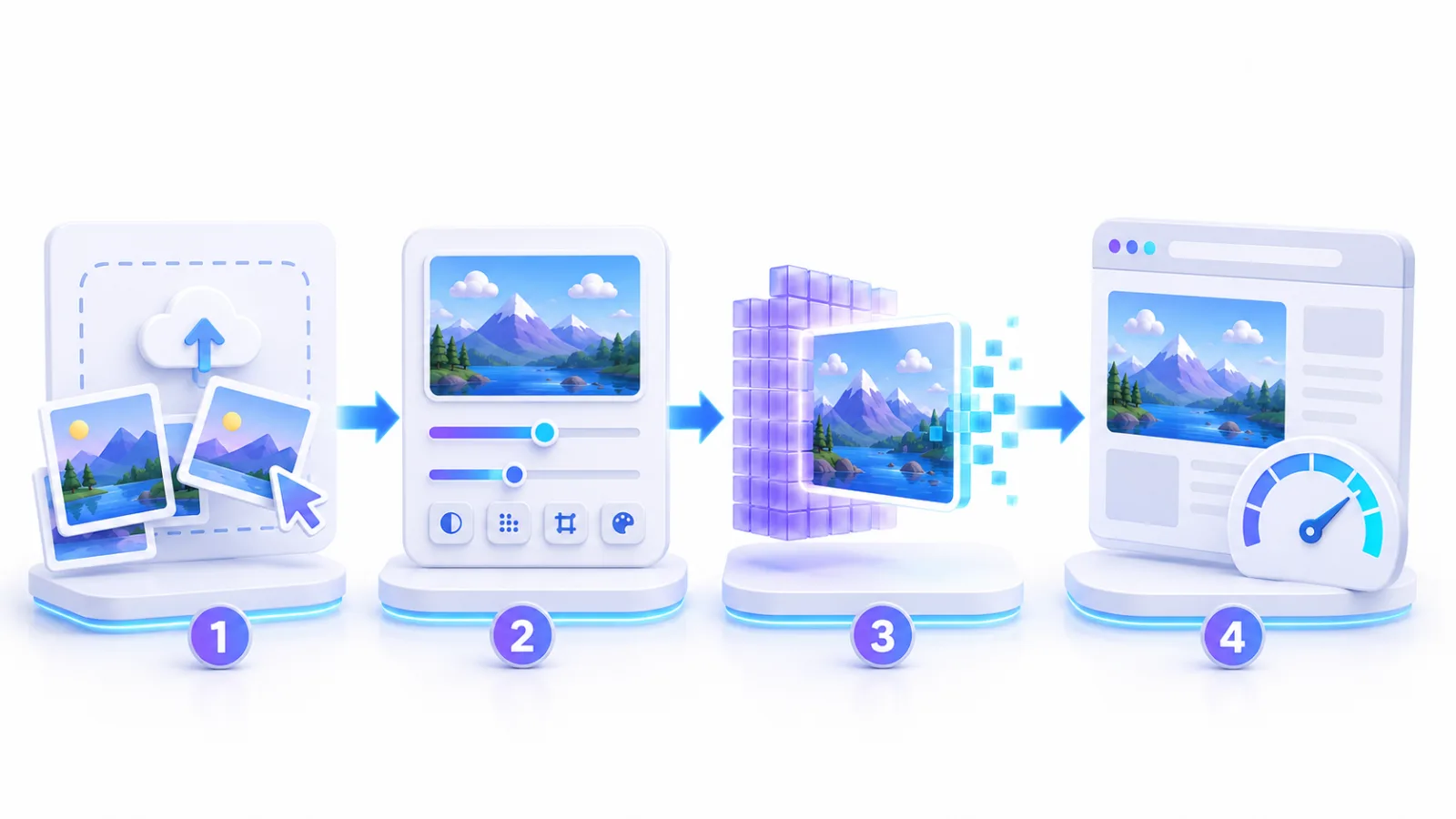
Images account for a large share of the data transferred by webpages, especially when they are uploaded at excessive dimensions or in formats that are inefficient for web display. That is why convert images to WebP has become a practical way to reduce page weight and help content appear faster while preserving visual quality that is appropriate for visitors.
Image optimization is not just about changing the file extension. The best result comes from using suitable dimensions, choosing an appropriate quality level, giving the file a clear name, and adding alt text that describes the image for search engines and accessibility technologies.
Why do images use so much webpage data?
A webpage may contain text, buttons, and small style files, while a single image can use hundreds of kilobytes or even several megabytes. When a page contains many images, loading time and mobile-data usage can increase significantly, especially on slower connections.
The same problem occurs when a site owner uploads an image that is four thousand pixels wide and then displays it inside a card only a few hundred pixels wide. The browser still downloads the large file first and then scales it down visually, so the visitor pays the loading cost without gaining any practical benefit from the extra resolution.
What is WebP, and why is it suitable for websites?
WebP is a modern image format designed to provide smaller files for the web. It supports both lossy and lossless compression, as well as transparency and animation when those features are needed.
This flexibility makes WebP useful for hero images, article cards, product photos, illustrations, and logos with transparent backgrounds. The amount of file-size reduction varies from one image to another depending on its detail, colors, and original format.
Lossy compression
Lossy WebP reduces some image data in a controlled way to reach a smaller file size. It is well suited to photographs and hero images with gradients and many colors. With a balanced quality setting, the difference can be difficult to notice during normal website viewing.
Lossless compression
Lossless WebP preserves image data without removing detail and is useful for logos, graphics, and assets that need crisp edges or transparent backgrounds. The file may be larger than a lossy WebP version, but it is a valuable option when accuracy is the priority.

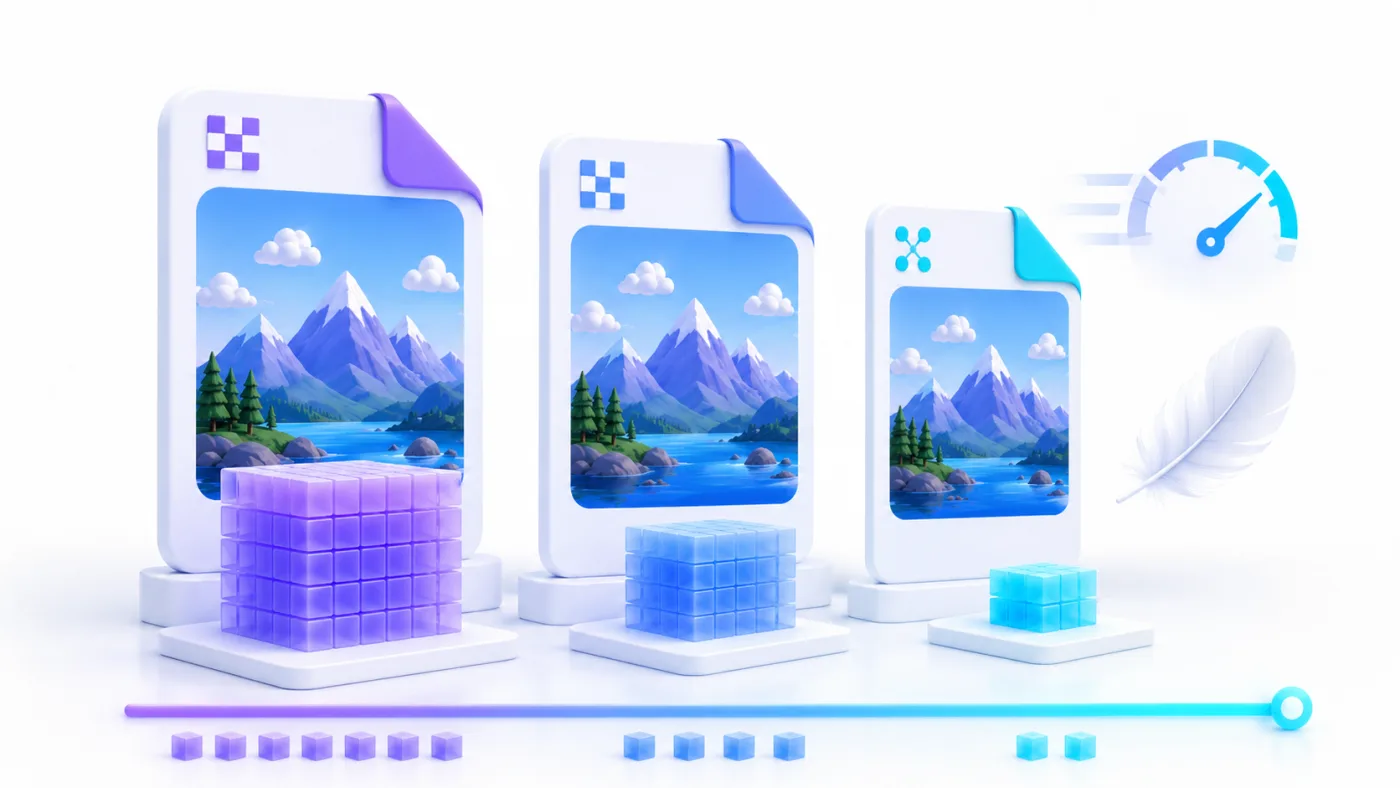
WebP combines smaller file sizes with transparency support and visual quality that works well on webpages.
How does image file size affect page speed?
The larger the files are, the longer the browser needs to download, process, and display them. The effect is especially noticeable on phones and slower networks, where visitors may see empty space before an image finishes loading.
Images and Largest Contentful Paint
A featured or hero image is often the largest visible element on a page. If that file is heavy, the main part of the page can take longer to appear. Images near the top of the page therefore deserve particular attention during optimization.
Image dimensions are not the same as file size
Dimensions describe width and height in pixels, while file size describes the amount of data the browser has to download. Two images can have identical dimensions but very different file sizes because of format, quality settings, or embedded data.
Start by resizing the image to dimensions that fit the actual display area, then convert it to WebP and adjust the quality. Applying these steps in that order usually produces a better result than changing the format alone.
How to convert images to WebP in practice
You can use the image converter to change formats directly in your browser without installing additional software. If your source images are JPG files, you can also use the JPG to WebP converter .
Conversion steps
- Start with the highest-quality source image available.
- Resize it to dimensions that match the area where it will appear on the website.
- Upload the image to the converter.
- Select WebP as the output format.
- Choose a quality level that fits the type of image.
- Download the new file and compare its size and appearance with the original.
- Upload the WebP version to your website and use a clear file name and useful alt text.
Set the dimensions first, then choose the quality level and convert the image to WebP before uploading it.
How to choose the right quality level
There is no single quality percentage that works for every image. Photographs can usually tolerate more compression than screenshots, small text, application interfaces, or precise diagrams.
Balanced quality for most website images
A medium-quality range is a good starting point for hero images, article images, and product photos. After conversion, review the image at the size where it will actually appear on the page rather than magnifying it far beyond its real use.
Higher quality for fine detail
Use a higher setting when an image contains small text or details that visitors need to see clearly. Keep an eye on file size because pushing quality close to the maximum can reduce the size advantage WebP has over the original format.
Preserving transparency
WebP supports transparent backgrounds, so it can be used for logos, icons, and graphics. After conversion, check that no unintended white or black background has appeared around the subject.
Naming images and writing alt text correctly
Image optimization does not end when the file becomes smaller. A clear file name and accurate alt text help organize website assets and explain image content, and alt text also supports users when an image cannot be displayed.
Choose a clear file name
Avoid random names such as IMG_4589.webp. Use a short name that describes the content and separate English words with hyphens, for example:
convert-images-to-webp.webp
There is no need to stuff the file name with keywords. It only needs to be clear and genuinely related to the image content.
Write useful alt text
Write a short description of what the image shows and its purpose within the article. Do not begin every description with “image of,” do not repeat the full article title for every image, and do not force keywords into the text unnaturally.
- Describe the main subject visible in the image.
- Add context when it is important for understanding the image.
- Use different alt text for different images.
- Leave alt text empty for purely decorative images that add no meaning.
When should you keep JPG or PNG files?
The advantages of WebP do not mean you should delete every original file. Keep high-quality source images outside the website’s upload workflow so you can edit them or export new sizes later.
Professional editing
Keep the original file when you may need to edit the image in design software or use it for print. A WebP version created for the website is not always a substitute for the source file.
Print files
WebP is designed primarily for digital display. Professional printing usually requires higher-resolution files, different color spaces, and settings that are not the same as those used for webpages.
Older systems or workflows
Modern mainstream browsers support WebP, but some older software or limited file-management systems may still have difficulty previewing or editing it. Keep a JPG or PNG copy when you need to work with those systems.
Common mistakes when converting images to WebP
Converting an image that is already heavily compressed or damaged
Changing the format does not restore detail that has already been lost. If a JPG contains visible artifacts or damaged edges, those problems can remain after conversion. Always begin with the best source version available.
Keeping unnecessarily large dimensions
The file may become smaller after conversion and still be larger than necessary if its dimensions are excessive. Use the image resize tool before conversion when the source dimensions are much larger than the actual display area.
Deleting the originals
Keep an offline or source copy of the original images. You may later need to export them at a different quality level, create a print version, or change the design dimensions.
Leaving other formats unoptimized
You may need to keep some JPG or PNG files for practical reasons. In that case, use the image compression tool to reduce their size instead of leaving them unoptimized.
How does WebP relate to SEO?
An image format alone does not guarantee higher search rankings. SEO depends on content quality, site structure, user experience, internal links, and many other technical factors.
Optimized images can, however, remove one important cause of slow pages. Smaller files reduce transferred data, help content appear faster, and improve the experience for mobile visitors. Image optimization is therefore a useful part of a wider site-performance strategy, not a replacement for the rest of SEO.
For a more complete result, combine WebP with appropriate dimensions, lazy loading for images below the fold, explicit width and height attributes in HTML, and avoiding downloads of images that are never shown to the user.
Checklist before uploading WebP images
- Are the image dimensions appropriate for the display area?
- Is the file clearly smaller than the original?
- Are important text and details still clear?
- Is transparency preserved where required?
- Is the file name short and descriptive?
- Did you add useful alt text?
- Did you keep the original source file in a safe location?
You can also review the online image tools guide to choose the right tools for conversion, compression, resizing, and background removal.
Conclusion
Converting images to WebP can reduce webpage weight and improve loading performance, but the best result comes when you set appropriate dimensions and quality before uploading the image.
Start with a good source image, choose dimensions that fit the design, convert it to WebP, and compare the result visually. Then use a clear file name and accurate alt text, and always keep your source files outside the website.
Frequently Asked Questions About Converting Images to WebP
Do browsers support WebP?
Modern mainstream browsers support WebP. You may only need an alternative format when working with older software or systems that cannot preview newer image formats.
Will the image look less clear after conversion?
That depends on the quality setting and the type of image. With a balanced setting and a review at the image’s real display size, you can often achieve a smaller file while preserving visual quality that is difficult to distinguish from the original.
Can transparent logos be converted to WebP?
Yes. WebP supports transparency. Check the logo edges and background after conversion to confirm that the result remains correct.
What dimensions should article images use?
The right dimensions depend on the website design and actual display area. In most cases, it is better to use an image width that closely matches the content container instead of uploading a huge file and relying on the browser to scale it down.