
Create a Clear Favicon Instead of Letting the Browser Choose a Random Icon for Your Website
A Favicon is the small visual mark that appears next to a page title in a browser tab. It may also appear in bookmarks, mobile shortcuts, and some operating-system interfaces. Its size is small, but it helps users recognize your website when several pages are open at the same time.
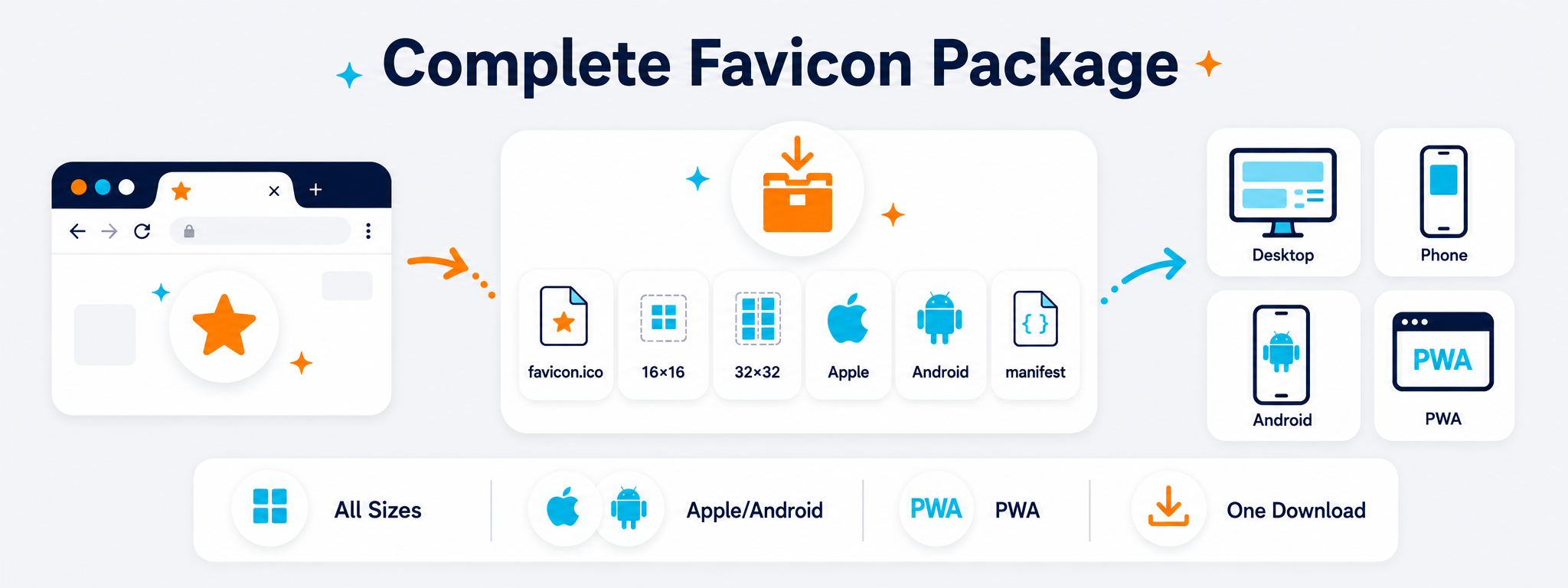
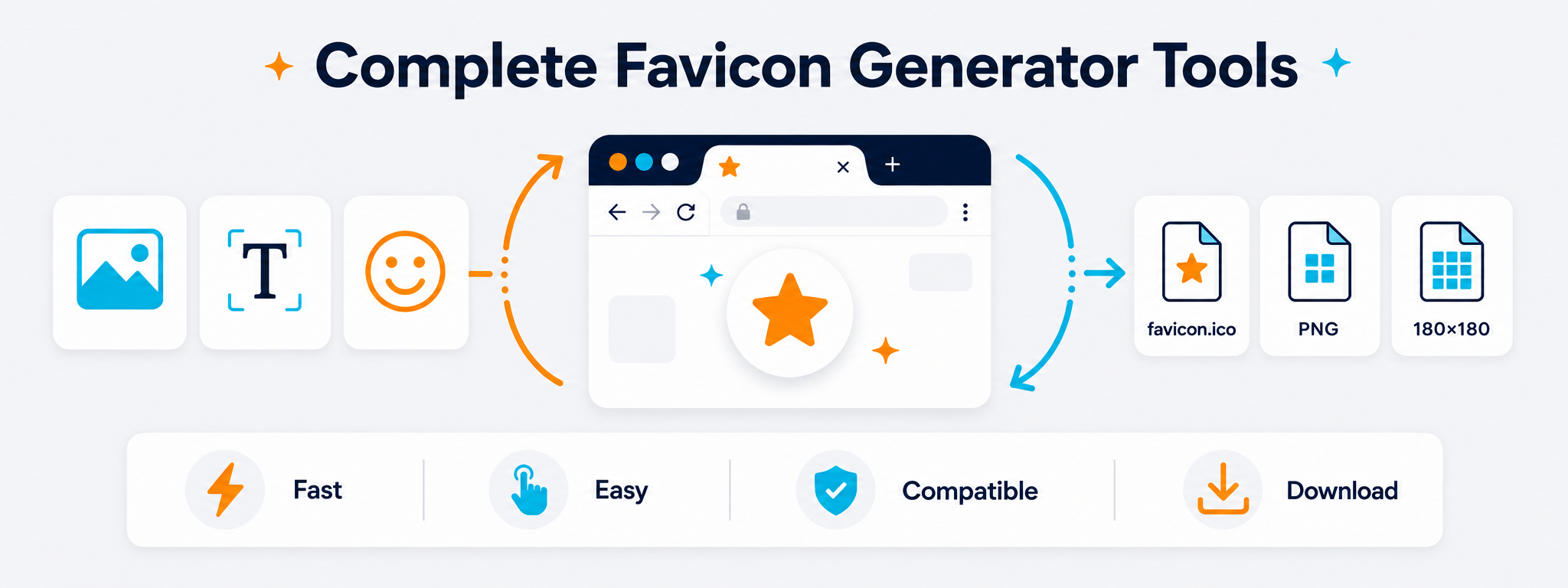
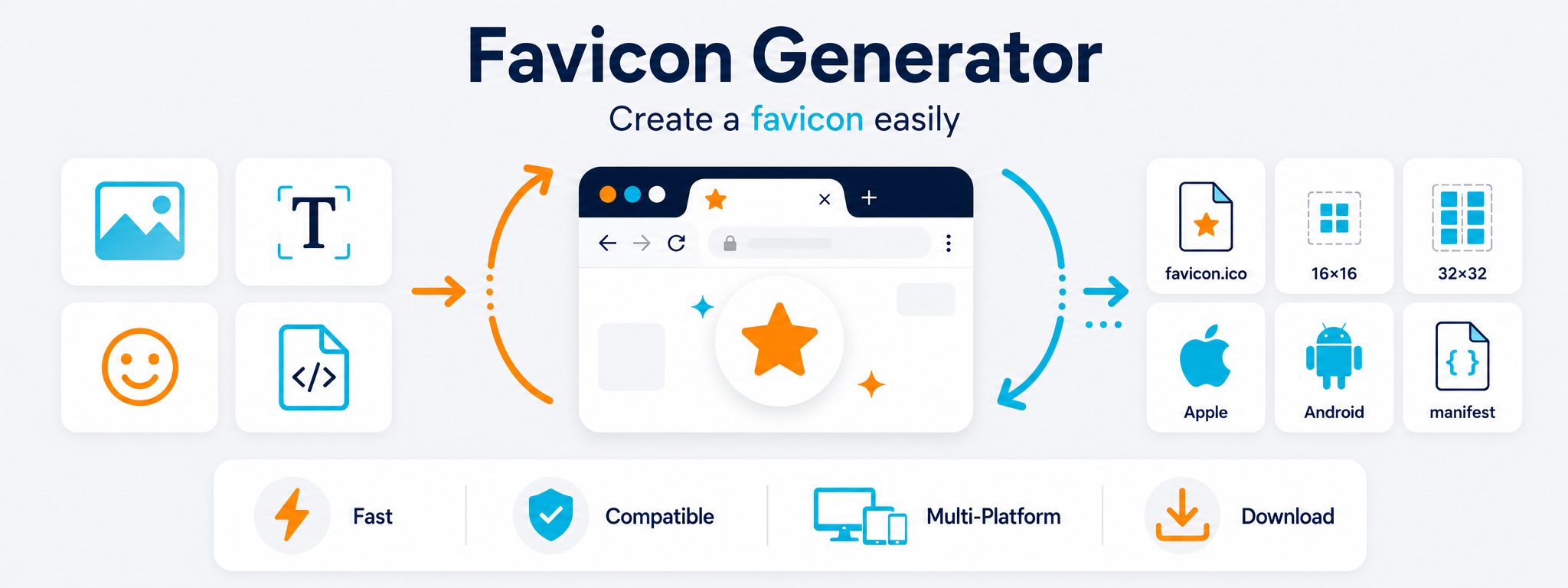
The Favicon Generator helps you prepare an icon from a source you already own: a logo, image, SVG file, letter, short word, or even an emoji. Instead of creating every size manually, you start with one design and prepare the files required for your website, browsers, and different devices.
The goal is not to generate as many files as possible, but to create a clear and organized Favicon package that is easy to install and review. This guide explains how to choose the source, understand common sizes and package files, add the relevant HTML, and check the icon after installing it on your website.
What Is a Favicon and Why Does It Matter?
A Favicon is more than a miniature logo. It is a simplified version of your visual identity that needs to remain understandable even at extremely small sizes. A simple symbol may work perfectly at 32×32 pixels while a long, detailed logo may lose nearly all of its visual information.
Recognizable Browser Tabs
When several tabs are open, a clear icon helps users recognize your website quickly without having to read every page title.
More Consistent Branding
Using a clear symbol that matches the project identity creates a more consistent brand presence across the website, browser, and device shortcuts.
Better-Looking Shortcuts
When a website is added to a home screen or saved as a shortcut, device-specific icon files can provide a more appropriate visual result.
Fewer Details, Better Clarity
Favicon space is extremely limited, so you will often need a simplified version of the logo instead of trying to squeeze the entire identity into a small square.
Files for Different Contexts
Browsers and devices may use different file types and dimensions, which makes a multi-file package more practical than relying on a single image.
Easier Future Maintenance
Clear file names and HTML references make it easier to update or replace your Favicon later without unnecessary mistakes.
Three Quick Ways to Create a Favicon from Scratch or an Existing Identity
The best source depends on the project. A website with an established logo needs a different starting point from a new project that only has a name or first letter.
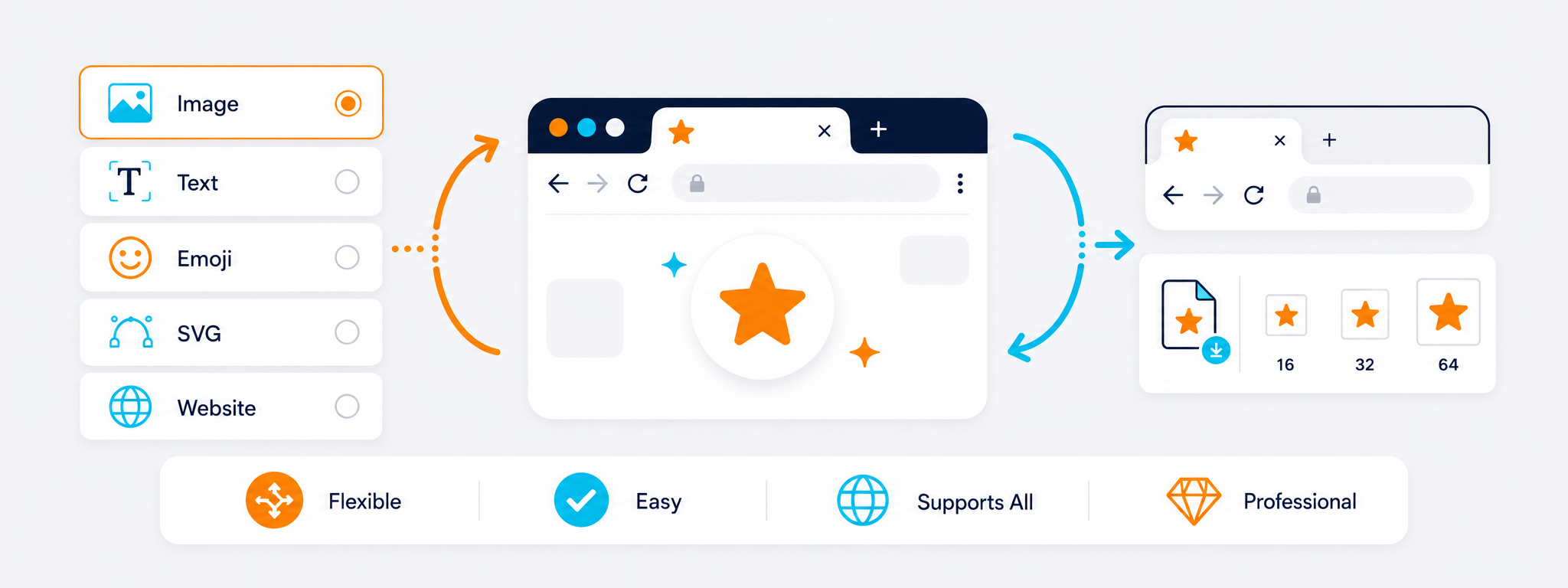
Convert an Image or Logo
Upload a clear image, preferably square or suitable for cropping into a square. This option is ideal when you already have a visual symbol and want to convert it into multiple Favicon sizes.
Create a Favicon from Text
Use one or two letters from the project name, then choose the background color, text color, and font. This is practical for brands that do not yet have a standalone symbol.
Create a Favicon from an Emoji
Choose a simple, readable symbol if it suits the nature of your project. Emoji can be a quick solution for personal websites or experimental projects that do not require a custom-designed logo.
What Does a Complete Favicon Package Include?
A well-organized package collects common files under clear names so you do not need to return to the original design whenever you need another size. The actual files may vary depending on the generator settings and your project's requirements.
| File | Common Size | Use | Note |
|---|---|---|---|
| favicon.ico | May contain multiple sizes | General browser compatibility and fallback | An ICO file can contain several sizes instead of a single image. |
| favicon-16x16.png | 16×16 | Small interfaces and browser tabs | Review the icon visually at this size because excessive detail becomes obvious quickly. |
| favicon-32x32.png | 32×32 | Browsers and higher-density displays | A common size that provides more visual clarity than 16×16. |
| apple-touch-icon.png | 180×180 | Apple device shortcuts | The visual identity should remain clear and work well inside a square. |
| android-chrome-192x192.png | 192×192 | Android devices and some modern web experiences | May be used within modern website icon packages depending on the configuration. |
| android-chrome-512x512.png | 512×512 | High-resolution version for devices and installed web apps | Provides the system with a high-resolution icon when needed. |
| site.webmanifest | Data file | Defines icons and information for installed web experiences | Use it when your project requires a Manifest and related settings. |
Which Source Should You Use to Create Your Favicon?
There is no single source that works for every project. Choose the file or idea that provides the best clarity when reduced in size rather than automatically using the most detailed version of your logo.
PNG with Transparency
A practical choice when you already have a finished symbol and want to preserve transparent space around it.
JPG or Standard Image
Suitable when the source has a fixed background. Make sure the square crop does not remove important parts of the image.
SVG
A useful choice for vector logos because it provides a clean source that can be exported to multiple sizes.
One or Two Letters
A simple and effective solution when the project name is recognizable or when no standalone visual symbol exists yet.
Emoji
A quick option for lightweight or experimental projects, provided that the symbol remains clear and matches the nature of the website.
Favicon from an Existing Website
If you are reviewing an existing website, inspect the current files before replacing them so you understand what already works and what the package is missing.
How to Create a Favicon Step by Step
The process does not need to be complicated. Start with a good source, review the smallest versions, then download the package and install it correctly.
Choose the Source
Upload an image or SVG, or start with a letter or emoji if you do not already have an icon.
Adjust the Shape and Colors
Review the crop, background and contrast, and make sure the symbol does not sit uncomfortably close to the edges.
Check Small Sizes
Pay particular attention to 16×16 and 32×32. If important details disappear at these sizes, simplify the design before exporting.
Download and Install the Package
Upload the files to your website, add the required HTML references or platform settings, then test the result in browsers and on mobile devices.
How Do You Keep a Favicon Clear at Small Sizes?
An icon that looks excellent on a large design canvas may become unreadable inside a browser tab. Review the reduced version exactly as users are likely to see it.
Use one main visual element or a simple composition. Every tiny line or fine detail has less chance of remaining visible when the icon is reduced.
Maintain strong contrast between the icon and background, and test it on both light and dark backgrounds when appropriate.
Leave safe space around the main element instead of extending it to the edges, especially when systems may display the icon inside masks or rounded shapes.
Where Do You Place Favicon Files and How Do You Link Them to a Page?
Modern platforms can often manage a website icon through their settings, but understanding the underlying HTML links is still useful when working on a custom site or reviewing what a platform generates behind the scenes.
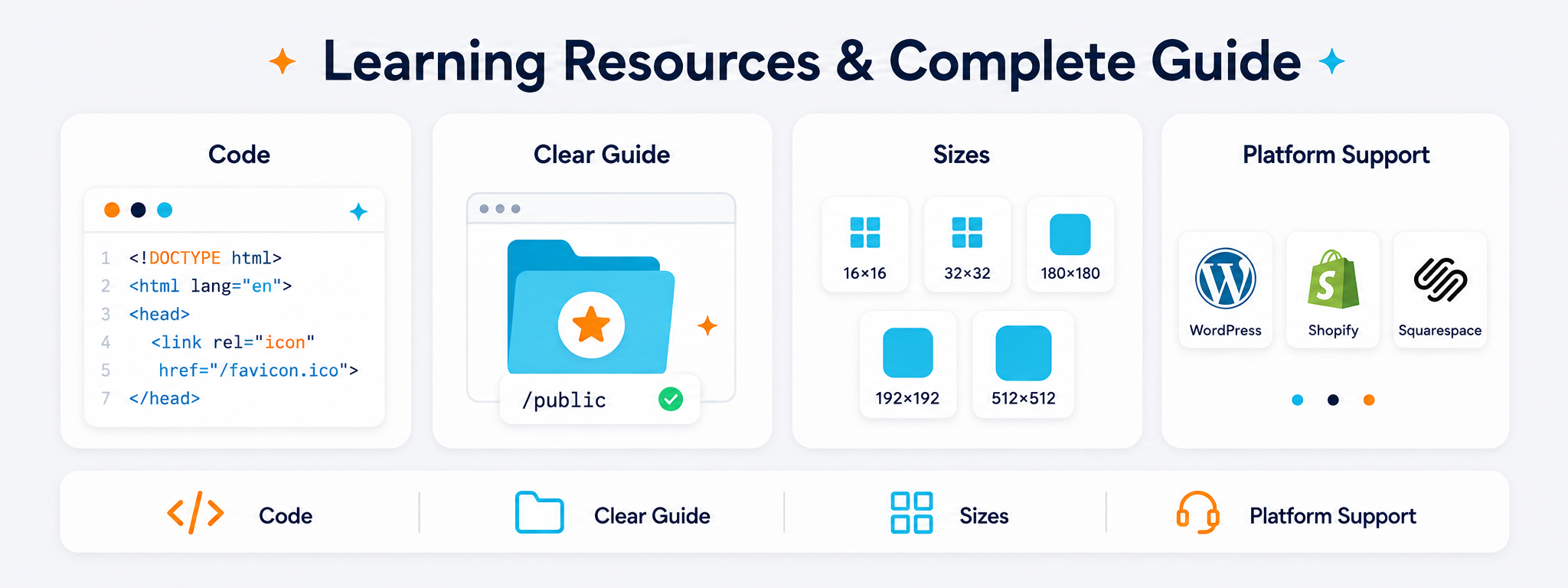
After uploading the files to stable paths, you can reference some of them inside the <head> element. The following example shows a general structure. Adjust the file paths or files according to the package you created.
<link rel="icon" href="/favicon.ico" sizes="any">
<link rel="icon" type="image/png" sizes="32x32" href="/favicon-32x32.png">
<link rel="icon" type="image/png" sizes="16x16" href="/favicon-16x16.png">
<link rel="apple-touch-icon" sizes="180x180" href="/apple-touch-icon.png">
<link rel="manifest" href="/site.webmanifest">
| Step | What Should You Check? |
|---|---|
| Upload Files | Confirm that each URL opens the actual file directly and does not return a 404 error. |
| Add HTML Tags | Make sure the file names referenced in HTML match the actual uploaded files. |
| Manifest | Add it only if your package and project use it, and verify the icon paths inside the file. |
| Testing | Open the website in more than one browser and review browser tabs and mobile shortcuts when needed. |
Check Your Existing Favicons Before Replacing Them
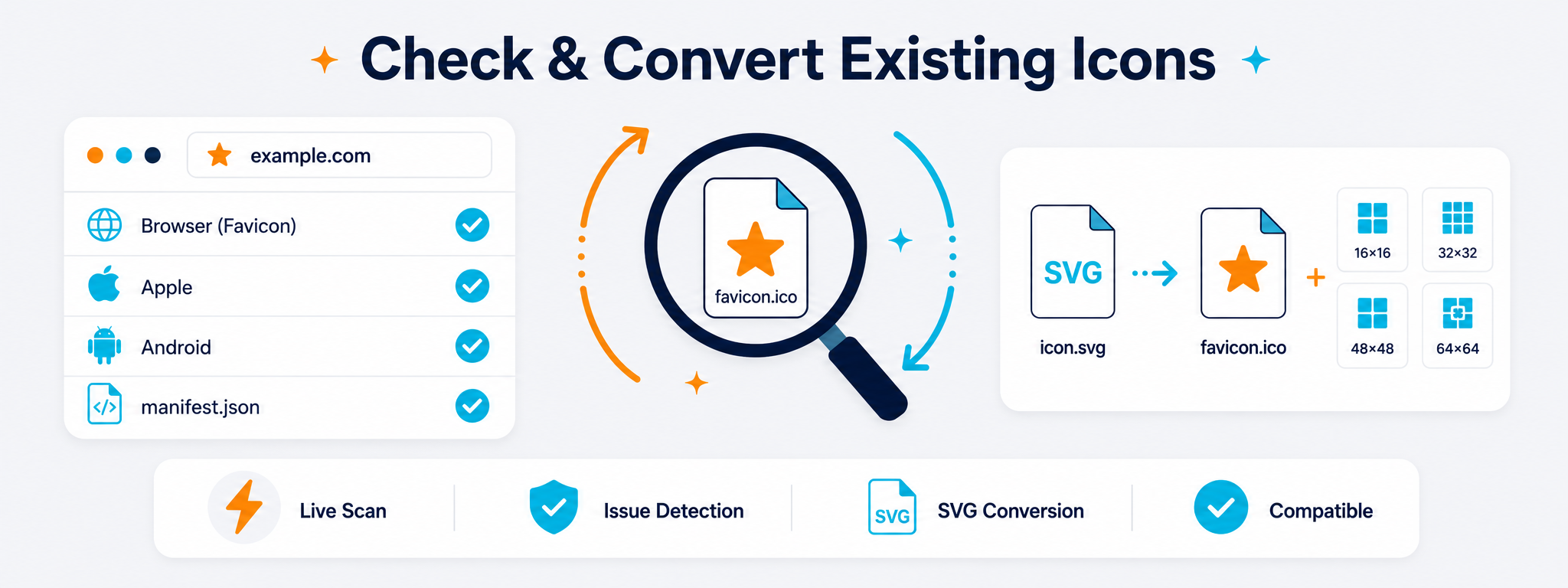
Sometimes the problem is not that a Favicon is completely missing. Some files may exist while others are missing, HTML may reference an old path, or the Manifest may contain file names that are no longer used.
Favicon Checker
Enter the website URL to review accessible icon files and determine whether the main Favicon files are available.
Check HTML Tags
Review the link elements inside the head and confirm that every path points to an existing file.
Check the Manifest
If your website uses site.webmanifest, review icon paths, file names, and information related to the installed web experience.
Check Browser Cache
Browsers may retain an old Favicon for some time, so you may need a hard refresh or private browsing session after changing files.
Review Small Sizes
A file can exist and still have an unsuitable design. Open the 16×16 and 32×32 versions and make sure the symbol remains clear.
Convert SVG When Needed
If you have a good SVG symbol but no supporting files, use it as the source for producing the required PNG and ICO sizes.
Installing a Favicon in WordPress, Shopify and Squarespace
On hosted platforms and content management systems, you usually do not need to edit HTML manually. Look for website identity, browser icon, or Favicon settings in the theme or site configuration and upload the appropriate file there.
WordPress
Use the Site Icon option available in your theme or site identity settings, then review the result on the frontend after saving.
Shopify
Look for the Favicon option within theme customization or theme settings and upload a clear square version that meets the available field requirements.
Squarespace
Use the Browser Icon or equivalent branding setting available on your site, then test the icon after refreshing the page.
Why Does a Favicon Sometimes Fail to Appear Even After You Upload the Files?
Most problems are simple: an incorrect path, an old icon stored in browser cache, or a package that does not contain the sizes expected by the platform.
The file name in the HTML does not match the file on the server, or the URL returns a 404 error.
The new icon was uploaded successfully, but the browser is still displaying an older cached version.
The design contains too much text or too many details that look good at a large size but disappear at 16×16 pixels.
The Manifest points to old paths or files that no longer exist after renaming or replacing the Favicon package.