
split PDF files · 9 min read
Split PDF Files and Extract Pages: When Is It the Better Option?
Learn when to split a PDF, extract selected page ranges, create smaller documents, and choose splitting instead of deleting or reorganizing pages.
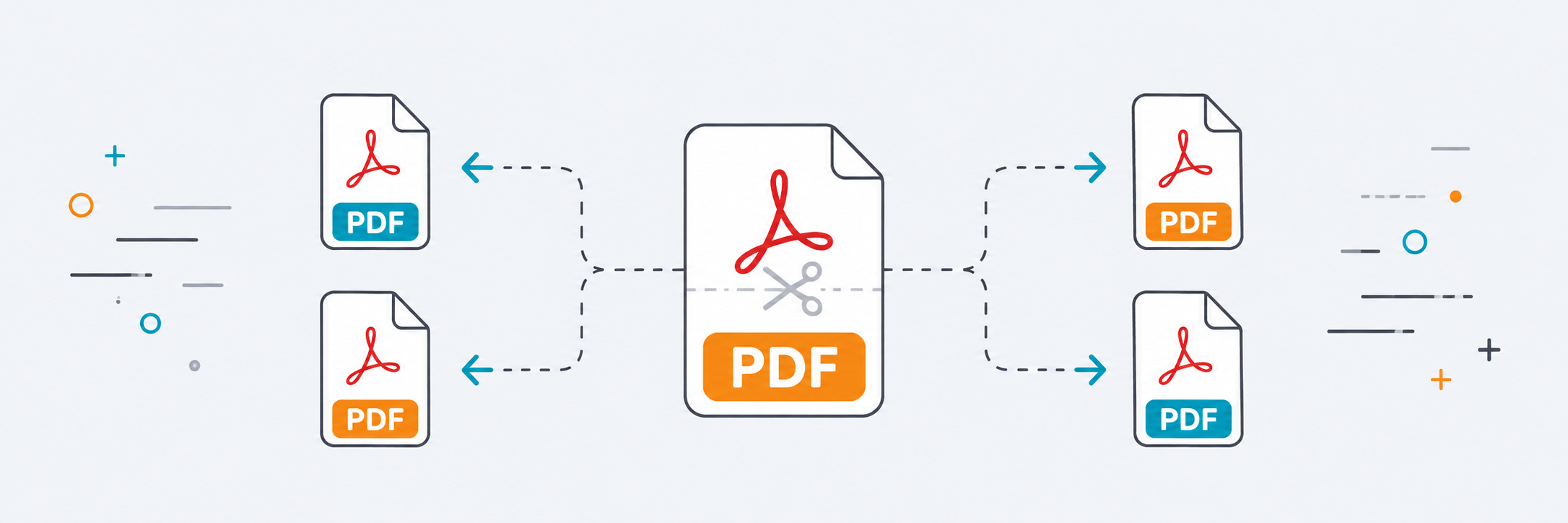
Sometimes you have a long PDF but only need a few specific pages. Sending the entire file can be confusing, may expose pages that are unrelated to the request, and can make the file larger than necessary.
This is where PDF splitting becomes useful. Instead of creating a new document from scratch, you can extract only the pages you need and send a shorter, more focused file.
In this guide, we will explain when to split a PDF, how to avoid page-selection mistakes, and when you may need to merge or compress the result afterward.
When do you need to split a PDF?
Split a PDF when the document is long but you only need a specific section. Examples include extracting a certificate page, part of a contract, several pages from a report, or a receipt from a file containing multiple documents.
This makes the final file lighter and easier to read. It also helps you send only what is required without including unnecessary pages.
Splitting is also useful when you want to organize a large PDF into separate parts, such as turning each section into its own file.
How do you identify the pages you need?
Before splitting, open the PDF and verify the page numbers carefully. Do not rely on assumptions, especially if the document includes a cover or table of contents, because the page numbers printed inside the document may not match the PDF page order.
Write down the required pages before starting. For example: page 2 only, pages 5 through 8, or several non-consecutive pages. This reduces the chance of selecting the wrong pages.
After extraction, open the new file and confirm that it contains everything you need and nothing extra.
- Verify page numbers before splitting.
- Account for covers and tables of contents when counting.
- Open the new file after extraction.
- Keep a copy of the original PDF.
Does splitting reduce file size?
Usually, yes, because you are keeping fewer pages. However, if the extracted pages contain large images, the resulting file may still be relatively heavy.
In that case, compress the PDF after splitting. This gives you a document that contains only the required pages and also has a smaller file size.
When do you need to merge after splitting?
Sometimes you extract pages from more than one PDF and then need to combine them into a single document. In that situation, split or extract the required pages first, then merge the resulting PDFs.
This workflow is useful when building one document from several sources: a page from one file, a receipt from another, and perhaps an image converted to PDF. The final result can then be arranged as one organized document.
Converting PDF pages to images
In some cases, you do not need another PDF at all; you need an image from a particular page. For example, a page may contain a barcode, table, or design that you want to share as an image.
In that case, convert the PDF page to an image instead of only splitting the document. Choose the method based on the result you need: a shorter PDF or a standalone image.
What is the difference between splitting a PDF and extracting one page?
Splitting a PDF usually means taking a long document and dividing it into smaller files or extracting a larger section. Extracting one page is a more specific case: you need a single page and want it as a separate file.
If you need a certificate page from a long document or one receipt from a multi-page file, extracting the page is the quickest solution. If you want to divide a large document into sections, use splitting.
In either case, review the output before sending it. Page numbering can sometimes be offset by a cover or table of contents at the beginning of the document.
Mistakes to avoid when splitting a PDF
The biggest mistake is selecting pages too quickly without checking their actual order in the PDF. Some files start with a cover or table of contents, so the number printed on a page may differ from its position in the file.
Another mistake is deleting the original document after extracting the required pages. Always keep the original in case you later discover that a page is missing or the order is incorrect.
After splitting, review the output as if you were the recipient. Does it contain everything needed? Are there unnecessary pages? Is the order clear? This quick check is more important than the technical operation itself.
- Do not guess page numbers.
- Do not delete the original file after splitting.
- Review the resulting PDF before sending it.
- Compress the final copy only if its size is still too large.
Conclusion
Splitting a PDF helps you send only the pages that are actually needed instead of sharing the entire document. Identify the pages carefully, review the result, and then compress or merge it if you need a more organized final file.